
If Smart Templates are enabled within your Equinox account, you can create Smart Template Collections. These are groups of templates typically reporting the same action, which can be selected from automatically using the case IP type and country code details (e.g. can be used to group templates reporting registration, each for a different jurisdiction with a separate letter template). These Smart Template Collections can then be associated with a pre-set task, as outlined in our article Add Pre-set Task Associated Templates.
You can access the Smart Templates from the System tab > Standard Templates.
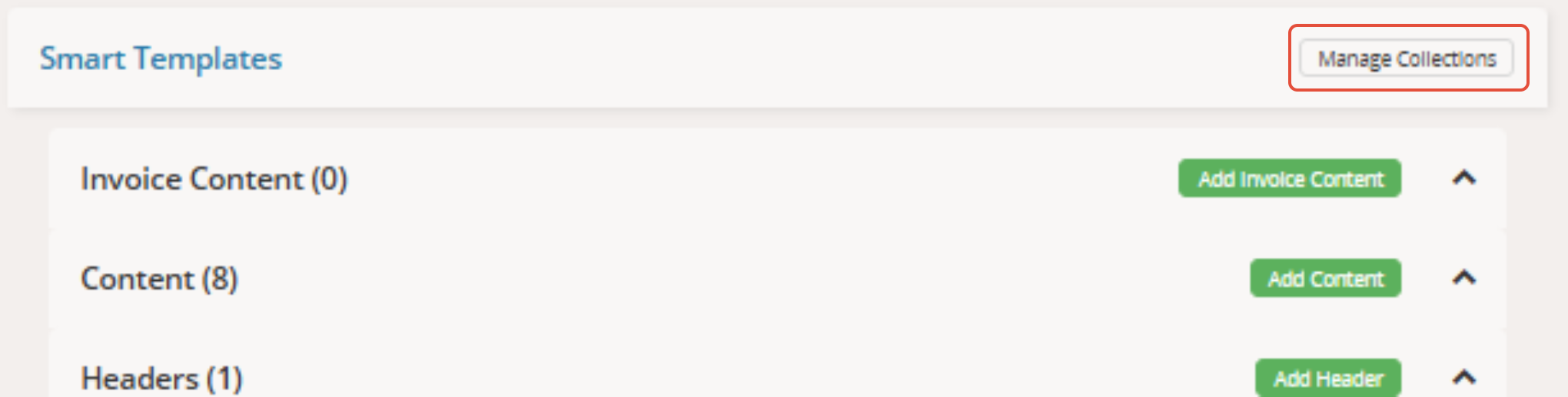
From here, you can select the Manage Collections button next to the Smart Templates section header:
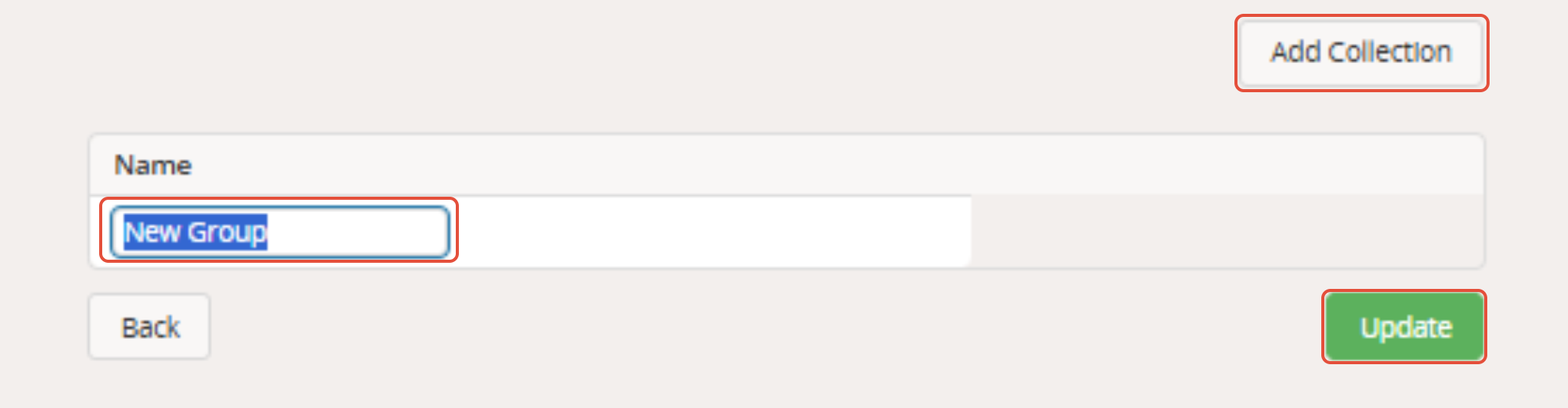
After selecting the Add Collection button, you can re-name your 'New Group' as desired, before clicking the Update button:
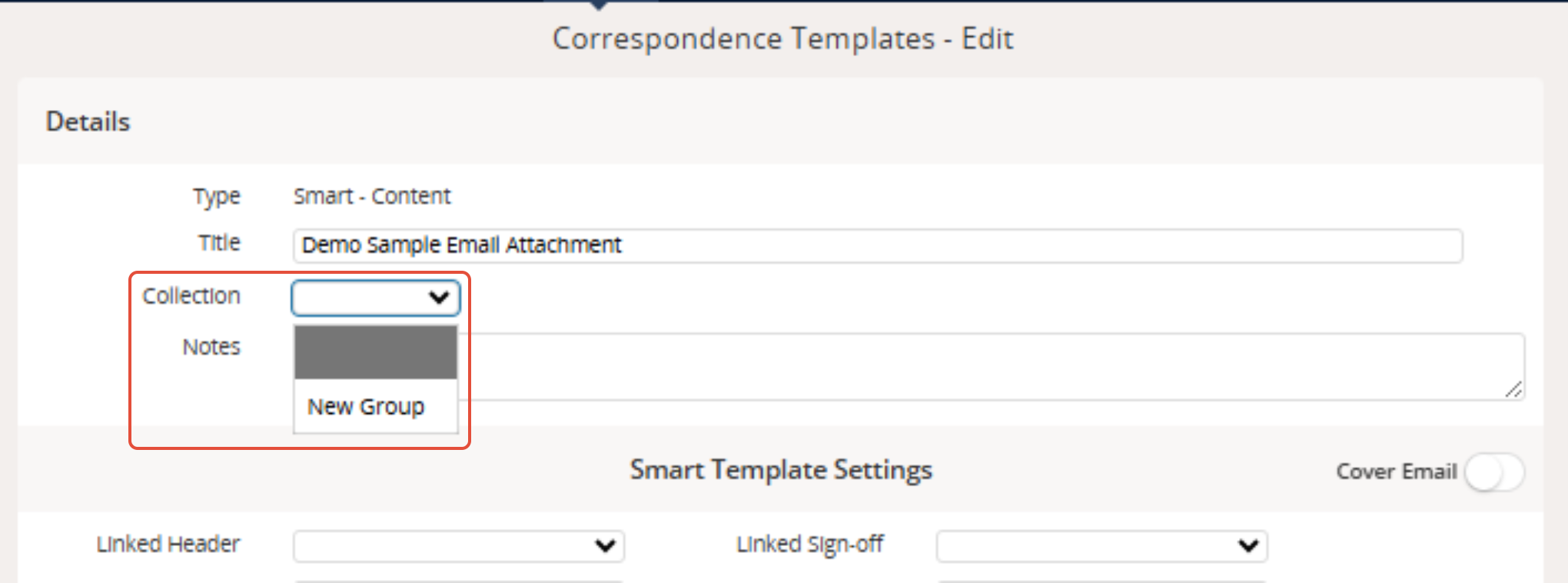
From your list of Smart Templates, you can then select the templates you would like to be in the collection, and assign them to the collection via the Collection dropdown menu in the Details section of the template, before clicking the green Save button at the bottom of the page:
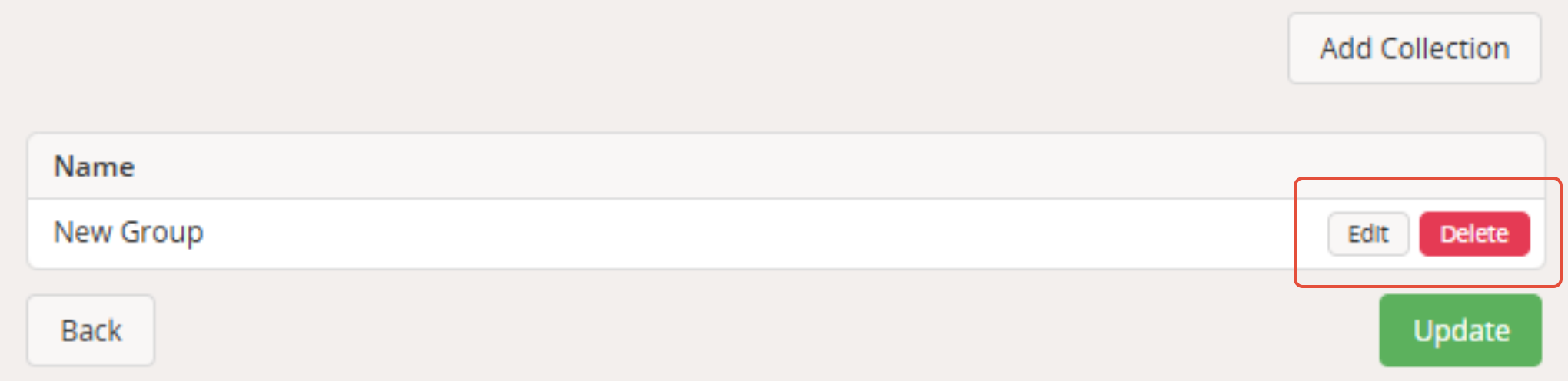
Once the collection group has been created, you can then edit the name or delete the collection under the Manage Collections button. Remember to click the green Update button if re-naming your collection.
Note! Each template in the collection can only be for one category and/or country, otherwise you will receive the following error message when trying to access the appropriate template from a task:

To avoid this, make sure to set the appropriate Category and Country in the Filter Settings section of each template:
