
TABLE OF CONTENTS
- How to Generate an IDS
- Troubleshooting Unexpected Form Output:
- Form Content Generates in xml
- For Foxit Business
How to Generate an IDS
Once citations have been recorded, users can generate a US or Israeli IDS to notify the citations.
- Go to the Family tab of the case
- Click on ‘Manage Citations’ in the top right
- Click ‘Notify Citations’ in the top right
- Fill in the following:
Field | Description |
Type |
|
Select a Case to produce form for | Select which case within the Equinox Extended Family, you are producing the form for |
Fee Earner Docket Number | US Patent Office Associate’s Reference |
Case Art Unit | US Patent Classification Class (See USPTO site for more information: https://www.uspto.gov/) |
Notification Date | Date citation is notified (defaults to today’s date) |

After selecting the above information, a table appears below and displays all citations that have not been notified yet (e.g. have not been included within an IDS generated from Equinox)
5. Use the tick boxes on the left to select which citations to include within the form (The first tick box selects all)
6. View/select previously notified citations by amending the drop down above the ‘Status’ field
Status options: Notified/Not Notified/All
The date next to notified citations is the date they were first notified.
7. Click ‘Create Form’ to generate the IDS
A zipped folder will download to your PC including the following files:
- IDS Form.pdf - This is the filled form
- Translation_of_[filename] - A copy of all ‘Translation Documents’ linked to the citations
NOTE - Generating the filled PDF form automatically is only available for clients on centralUS.equinox-ipms. Enable this on your system through System Preferences > Documents > Fillable Forms and tick the box "Enable IDS Form (USPTO SB08) Automatic Fill". If your Equinox system is at a different URL, then jump down to the section Form Content Generates in xml for further instructions.
8. Review the filled form and complete. Some sections will not be populated by Equinox data, including TIMING STATEMENT, TIMING FEE, COPIES, and SIZE FEE ASSERTION.
Troubleshooting Unexpected Form Output
If the output on the form is not as expected, please check specifically the “Number Type” for each citation. The citations will populate into each section of the form as follows:
US Patents
Type of Citation - Patent
Country = US
Number Type - Grant Number
US Patent Application Publications
Type of Citation - Patent
Country = US
Number Type - Publication Number
Foreign Patent Documents
Type of Citation - Patent
Country NOT US
Non-Patent Literature Documents
Type of Citation - Non-Patent Literature
Form Content Generates in xml
If your Equinox system is not centralUS.equinox-ipms.com, or in case the PDF form could not be filled automatically, you will receive a zip file with the following files:
File Name | Description |
IDS.pfd | The blank IDS as a PDF fillable form |
Translation_of_[filename] | A copy of all ‘Translation Documents’ linked to the citations |
[time]-IDS_Form_Data.xml | An XML file including the citation data |
To populate the IDS fillable form users would need a PDF software that supports the import of XML files (e.g. Foxit, Adobe Acrobat DC etc.)
For any software, you must first extract the files from the zipped folder and save them to a known location on your PC.
For Adobe, you must have Adobe Acrobat Pro (DC/2020/2017 or later)*.
| *NOTE: The Prepare a form → Options → Import data command is only available in Acrobat Pro (not Reader; and Standard does not include Prepare Form). |
1. Open the blank IDS file in Adobe.
2. Select Menu > Form Options > Import Data (note that different versions of Adobe may have slightly different paths)
a. If prompted with “This document restricts some Adobe Acrobat features…”, save a copy. This may trigger the form’s built-in validation, so you may see a Warning message that a box or a field is not entered. Click OK, then close the form and re-open the copy that you just saved. Go through Select Menu > Form Options > Import Data again.
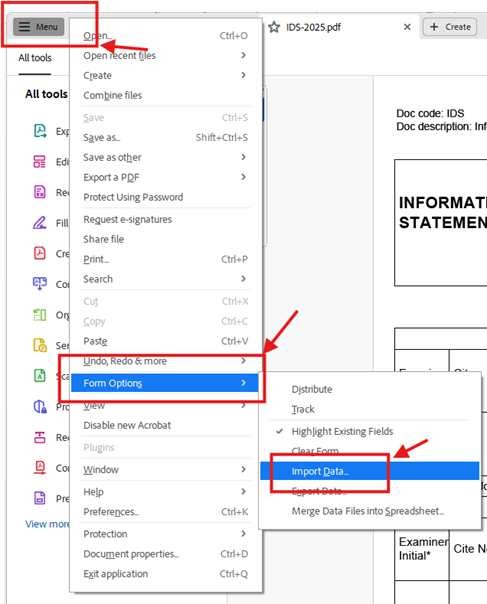
3. Select the xml file. Your form will be populated with Equinox data.
4. Review and complete. Some sections will not be populated by Equinox data, including TIMING STATEMENT, TIMING FEE, COPIES, and SIZE FEE ASSERTION.
For Foxit Business
1. Open the PDF fillable form
2. Click ‘Form’ in the toolbar across the top
3. Click ‘Import’ under ‘Form Data’
4. Select the XML file