
Equinox can be configured to support direct online filing of Registered Design applications with the European Union Intellectual Property Office (EUIPO). This guide walks you through enabling this feature and completing filing forms.
To Note:
This is the REUD Advanced filing (not the Easy Filing)
You can only file one design at a time through the Equinox integration
Fast Tracking is currently not possible through the integration
TABLE OF CONTENTS
- Configure Equinox for PTO Form Filing
- Complete the EUIPO Filing Form
- Form Fields
- Preview and Submit the Filing
- Viewing your EUIPO Form
- Important Notes
Configure Equinox for PTO Form Filing
First, you will need to create a new custom field under applicant/inventor to store the unique identifier of an applicant. You must also have the appropriate permissions level to view the PTO Forms settings (you can check under System > System Permissions > Edit Role Permissions, select the relevant role and ensure the Case PTO Filing section is either Create or Delete level).
Then, to enable EUIPO form filing in Equinox, navigate to System > System Preferences > PTO Integrations > PTO Forms and configure the following settings:
Enable PTO Form Filing – Activates PTO form features within Equinox
EUIPO Design Filing – Enables the filing form for Design cases
EUIPO Applicant ID Field – select the custom field that you created
EUIPO Environment for Design Filing - Choose to connect to the EUIPO Test or Production environment
Note! You will need valid EUIPO credentials to file in either environment.

Complete the EUIPO Filing Form
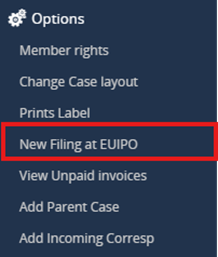
Once form filing is enabled, for cases where Country = EM and Category = Registered Design, you will see New Filing at EUIPO under Options in the left-hand panel. Selecting this will open the EUIPO Design Filing Form.
Form Fields
Form Fields: Case Details
Fields in this section will populate automatically from the case. Any missing data must be added directly to the case for it to then appear in the form.
Case Field | Design Form Field | Note |
Code | Case Code | |
N/A | Application Number | The application number will populate here upon submission of the application to the EUIPO |
| Short Title | Title | |
Product Indications | Goods and Classes |
Form Fields: Design Details
For Design filing, complete the relevant section Design Details.
Case Field | Design Form Field | Note |
N/A | Description | Short description to explain the design |
N/A | First Language | |
N/A | Second Language | |
| N/A | Protected Image One - Seven; Unprotected Image One - Three | Files uploaded to the case are available here. You can upload up to 7 protected images and up to 3 unprotected images. Supported file type is JPG |
N/A | 3D Model | Files uploaded to the case are available here. Supported file types are OBJ, STL and X3D |
| Priority | Priorities | Taken from the Case Details: Priority Date, Country, and Number |
Form Fields: Applicants
Applicants linked to the case will appear here. Complete signature and address fields. Use hover-over tooltips for assistance.
Form Fields: Designers
Optionally, you can submit the names of up to five designers. If submitting the names of designers, note that you cannot then select the tickbox Designs has waived citation rights under Additional Details section.
Form Fields: Additional Details
Optionally, you can make an Exhibition Priority claim by entering the relevant details of the exhibition (name, date, location) and attaching supporting documents.
Design Form Field | Note |
Exhibition Document | Files uploaded to the case are available here. Supported file types are PDF. Upon selecting a file and Validate, additional details about the Exhibition Priority will be requested |
Claim exhibition priority at a later date | |
| Use WIPO DAS system | Select if you want to use the WIPO DAS system to exchange priority documents for this Community design. For more information, visit WIPO Digital Access Service (WIPO DAS) page |
Designer has waived citation rights | Select if designer(s) has/have waived the right to be cited. Designers fields must be empty |
| Publication Deferment | Select to defer publication for up to 30 months |
| Publish after publication deferment | Select for the EUIPO to proceed with the publication of the design at the end of the deferment period. The Publication Fee will be charged together with the Deferment Fee when submitting the application |
| Claim priority at a later date | |
| Correspondence In Second Language |
Form Fields: Representative
Choose the Representative Mode.
If your EUIPO user account is linked to a representative, it will be associated automatically with the submission.
You can also manually enter a known Representative ID or leave it blank to assign later via the EUIPO website.

Form Fields: Payment Preferences
Select if paying by Bank Transfer or with your EUIPO Current Account.
Preview and Submit the Filing
Once all mandatory fields are filled in, the Form Status will change from Not filed to Valid. You will then see a new button: Preview and Submit. Select Preview and Submit to view a read-only version of your completed form.
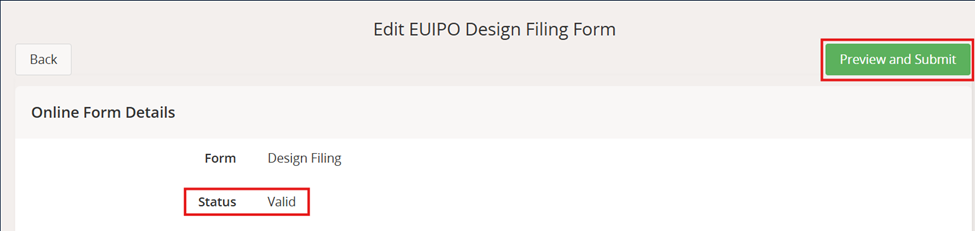
When ready, select Login to EUIPO from the top right.
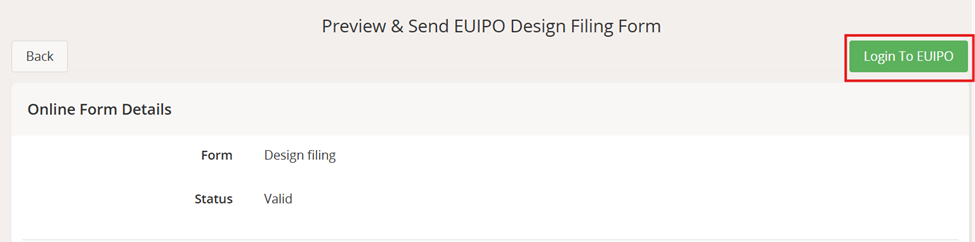
Enter your EUIPO credentials when prompted. Then you will be taken back to Equinox and can click Submit at the top right.
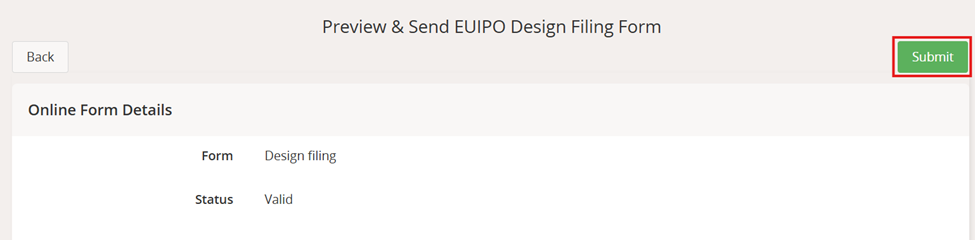
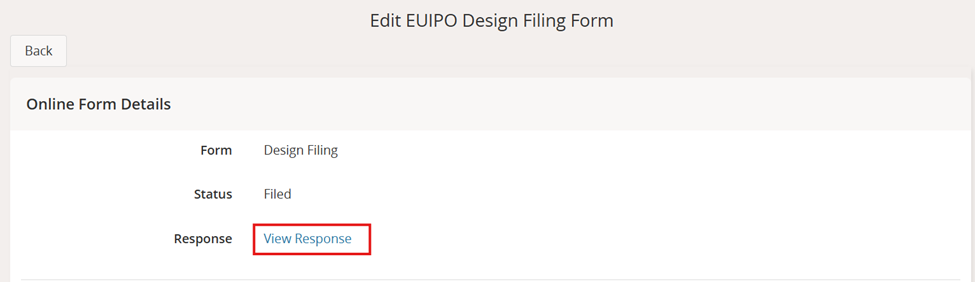
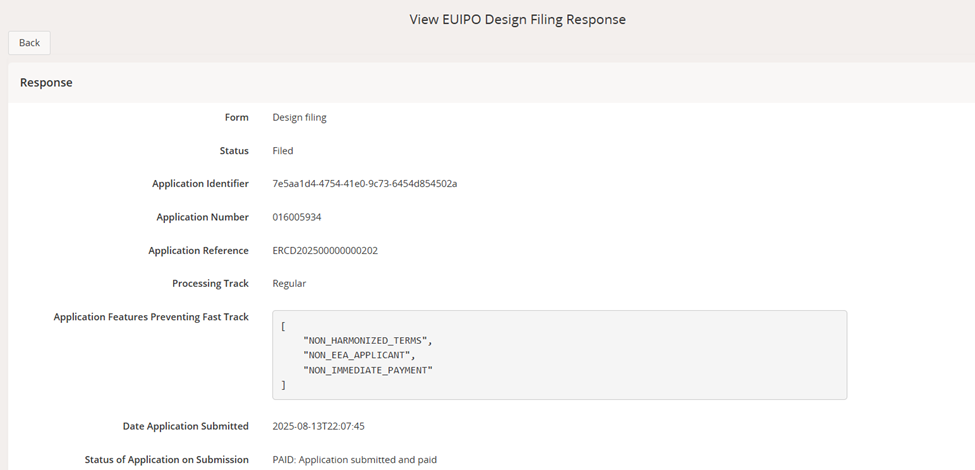
Upon successful submission, you will receive a confirmation message along with a technical response from the EUIPO. The response is available by clicking View Response in a user-friendly format.
Viewing your EUIPO Form
After initiating a form, even if not yet submitted, the left-hand menu option will change to View EUIPO Filing.
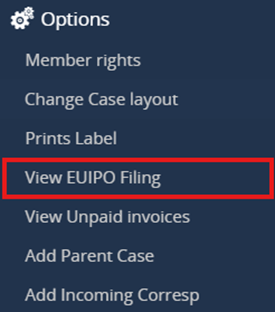
Use this option to:
Resume an incomplete filing
View the details of a submitted form
Important Notes
After submitting the form to the EUIPO, no further edits can be made through Equinox. For updates or corrections, visit the EUIPO website.