
IDs are commonly required when building and using expressions, as they allow you to reference specific data correctly. This article explains how to locate IDs within Equinox, helping you identify and use the correct ID for your requirements.
TABLE OF CONTENTS
FIELDS
A field ID is a unique number assigned to each field used to store data in your system. Each custom field will have its own field ID assigned upon creation.
How to find a custom field ID
Within the Admin tab -
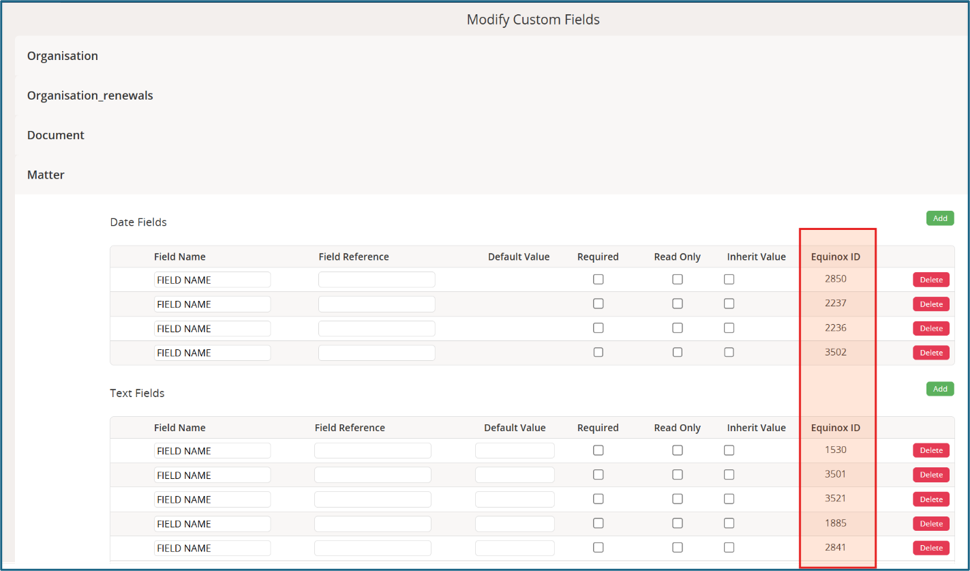
If you need to find multiple field IDs across different system areas, you can access a complete list of custom fields and their associated IDs.
To do this, navigate to System > System Customisation > Custom Fields and select the appropriate system area. Equinox will display all custom fields for that area, grouped by field type. The corresponding field IDs are displayed in the Equinox ID column.
Within the relevant system area -
This approach is best suited to situations where you only need to identify one or a small number of IDs within the same system area.
- Navigate to the system area containing the required field. The field does not need to contain any data.
- Right - click the field and select Inspect.
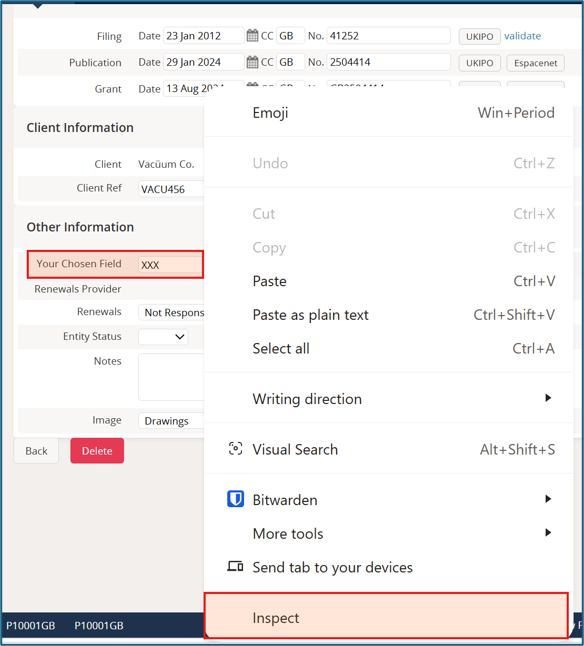
- An Elements panel will open on the right-hand side of your screen, with the details for the selected field highlighted.
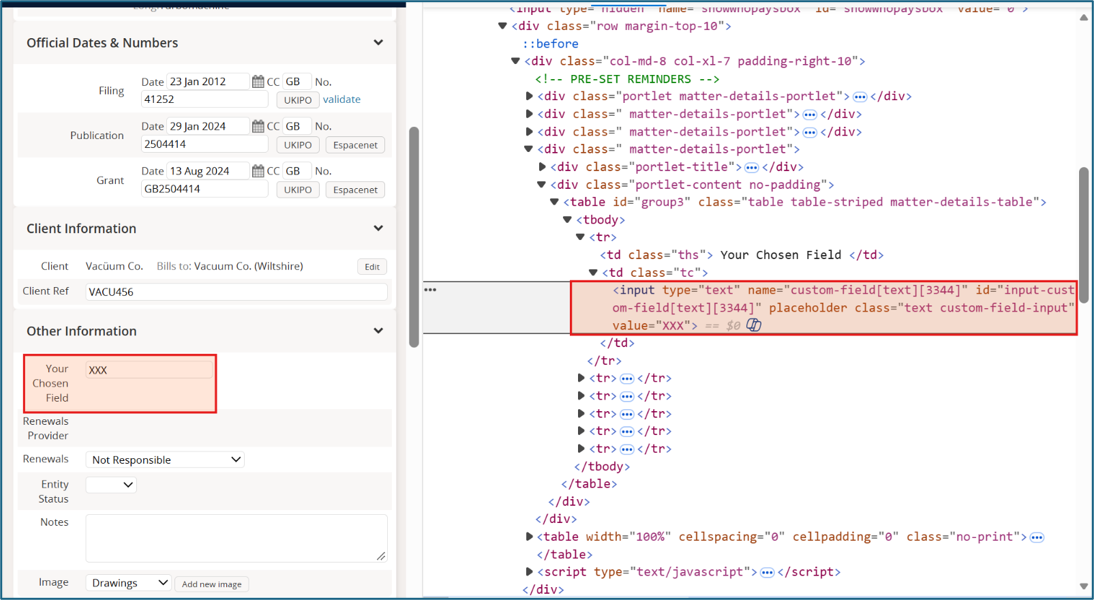
- Locate the text ‘id="input-custom-field[fieldtype][XXX]‘. The Field ID is the number shown in square brackets ([XXX]). In the example below, the ID is 3344.

History Date Fields
History Fields are the original custom field functionality in Equinox and can be used alongside Custom Fields, though we generally recommend using Custom Fields for most new requirements. History Date Fields remain essential for storing official dates, as they can hold a date, country code, and reference number within a single field, and are the only field type that can trigger pre-set task lists.
Most systems use Equinox's default IDs for standard history date fields. For example, the Filing field typically uses ID 2. A list of the default History Field IDs can be found here.
To identify the ID of a standard or custom History Date Field, follow the same process described in the Within the relevant system area section above. The only difference is that the information displayed in the Elements panel will have a different format. For these fields, the ID is shown within the attribute ‘id="hXXXdate"’, where XXX is the Field ID. For example, if the field displays ‘id="h209date"’, the Field ID is 209.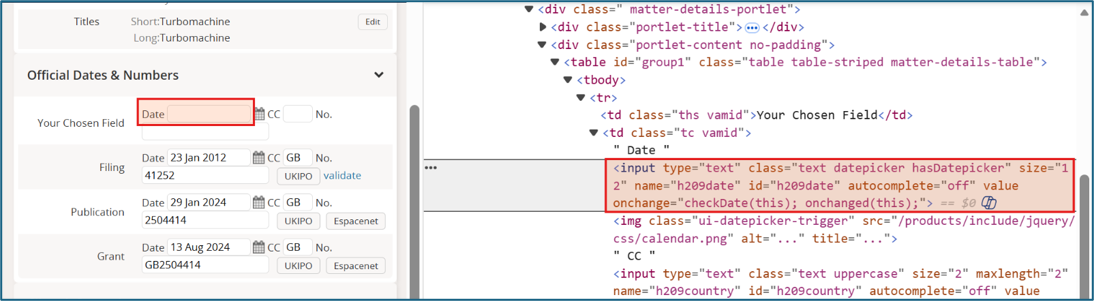
A list of History Fields can also be viewed via System > Case Customisation > Case Fields. However, this list does not include all standard History Date Fields and does not display Field IDs directly, meaning you will still need to inspect the field within the relevant system area to identify its ID.
PRE-SET TASKS
The merge code #PRESET_TASK_DATE_X# returns the deadline of the next active task matching the specified pre-set task ID on the case for which the correspondence is being generated.
To use this merge code, replace X with the ID of the relevant pre-set task.
To find the pre-set task ID:
- Navigate to System > System Customisation > pre-set Tasks.
- Open the relevant pre-set.
- Click Edit against the task whose deadline you want to populate.
- Copy the value shown in the Pre-set Item ID field.
For example, in the image below, the Pre-set Item ID is 711280. The merge code would therefore be #PRESET_TASK_DATE_711280#, which will display the deadline of the next active "DEADLINE – File Section 71 Declaration of Use" task on the case. 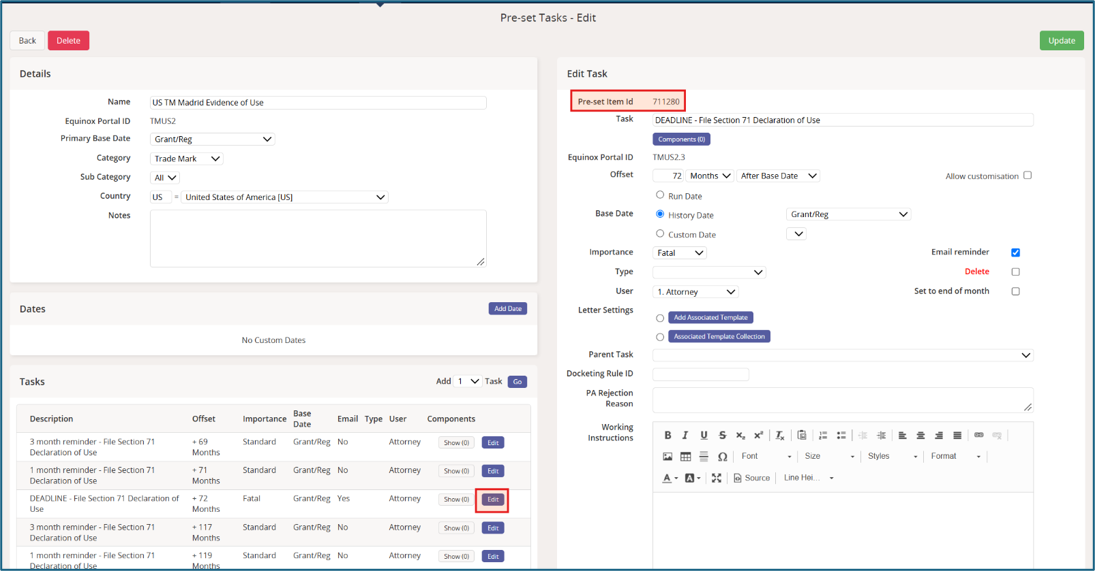
CHARGE SHEET ITEMS
The merge codes #CHARGESHEET_DESCRIPTION_X# and #CHARGESHEET_AMOUNT_X# can be used to populate correspondence templates with the description or amount of a specific charge sheet item.
To use this merge codes, replace X with the ID of the relevant charge sheet item.
To find the charge sheet ID:
- Navigate to Finance > Invoice Settings > Charge Sheet.
- Select the relevant charge sheet item.
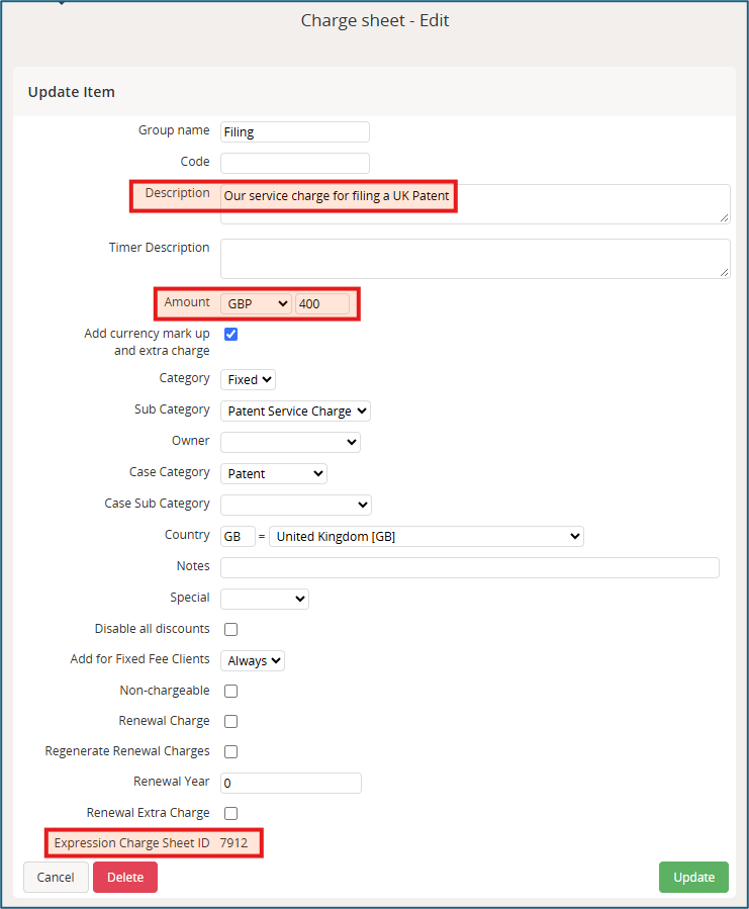
- Copy the value shown in the Expression Charge Sheet ID field.
For example, in the image below, the Expression Charge Sheet ID is 7912, so you would use the following codes:
- #CHARGESHEET_DESCRIPTION_7912# to display the item's description ‘Our service charge for filing a UK Patent’.
- #CHARGESHEET_AMOUNT_7912# to display the item's amount ‘£400.00’.
If you require further support with finding an ID, or creating an expression using an ID, please contact our dedicated team via support@equinox-ipms.com.