
Before using Smart Templates to send emails through Microsoft 365 for the first time, you may need to configure your Microsoft 365 settings to allow Equinox to access the required permissions.
This article explains how to configure Microsoft 365 for sending correspondence using Smart Templates in Equinox.
Note: Depending on your organisation's Microsoft 365 configuration, you may need assistance from your IT provider to complete the steps below.
For more information on generating correspondence using Smart Templates in Equinox once you're set up, please see: Process a smart correspondence task : Equinox Help Centre
TABLE OF CONTENTS
Prerequisites
To use Smart Templates in Equinox, you must:
Be using Equinox in a multi-tenant or single-tenant environment.
Have an active Microsoft 365 subscription with access to Exchange Online.
Note: Smart Templates do not currently support on-premises or hybrid Exchange environments.
Configure Microsoft 365 for Smart Templates
Step 1: Allow Microsoft Graph API Permissions
When using Smart Templates for the first time, you may be prompted to grant permissions to Equinox through Microsoft Graph API.
Microsoft Graph API is used to enable communication between Equinox and your Microsoft 365 email account.
The permissions request screen may vary depending on your organisation's Microsoft 365 configuration.
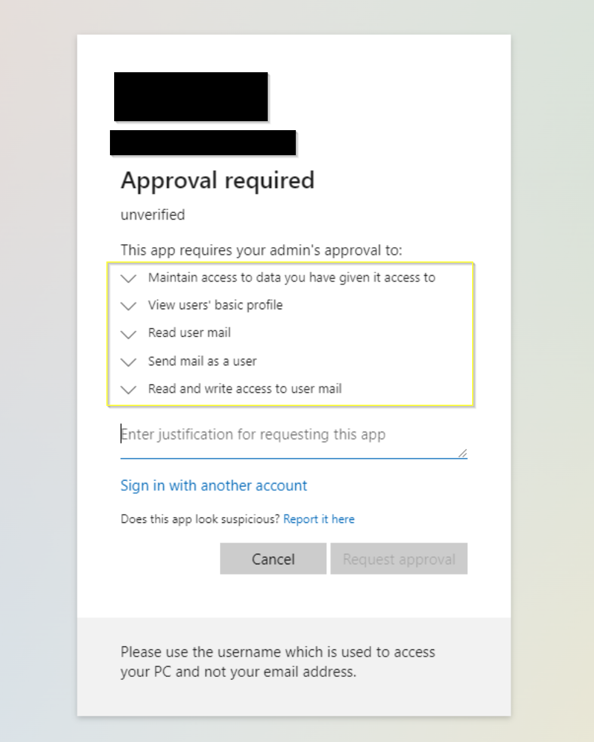
If you are unable to grant the requested permissions, contact your IT provider to approve the permissions required to use Smart Templates and outgoing correspondence in Equinox.
Step 2: Configure App Consent in Microsoft 365
If app consent has not already been configured, your IT provider may need to update your organisation's Microsoft Entra settings.
To configure app consent:
1. In Microsoft Entra, navigate to Enterprise applications > Consent and permissions > User consent settings.
2. Select the allow user consent for apps from verified publishers option.
For more information, see Microsoft's guide on Configure how users consent to applications.
3. Enable the admin consent workflow by setting Users can request admin consent to apps they are unable to consent to to Yes.
For more information, see Microsoft's guide on Configure the admin consent workflow.
4. Once configured, return to Equinox and generate a new smart correspondence task, and request access to the application when prompted.
5. Your request will appear in the Admin consent requests section of Microsoft Entra, where it can be reviewed by your IT administrator.
For more information, see Microsoft's guide on Review admin consent requests.
6. Your IT administrator can review and approve the access request.
Once the required permissions have been approved, you can begin using Smart Templates in Equinox.
Security and Data Access
Equinox takes the security and privacy of your data seriously.
Smart Templates use Microsoft Graph API to securely connect with your Microsoft 365 email account. This connection allows Equinox to generate and send correspondence securely, without accessing, retrieving or transferring the contents of your inbox.
Access is limited to the permissions required for this functionality and is controlled by your organisation's Microsoft 365 security settings.