This article has been updated to refer to Case Access Restriction Management, however this was previously referred to in the Equinox system as "Ethical Walls".
TABLE OF CONTENTS
- What Case Access Restrictions do
- Who can set Case Access Restrictions
- Set up Case Access Restrictions
- Set up a Case Access Restriction for a Role
- Set up a Case Access Restriction for a Team
- Set up a Case Access Restriction for a User
- Set Up User On Case Restrictions
- Case Access Restriction Levels
- What happens if a user tries to access a case blocked by a Case Access Restriction
- Legacy Ethical Walls
- Additional Preferences & Settings
What Case Access Restrictions do
Case Access Restrictions are a security feature that restricts access to certain cases based on predefined rules. It helps ensure that users can only view or interact with cases they are permitted to see.
Who can set Case Access Restrictions
Access to the Case Access Restrictions Management feature is controlled by user permissions.
To view or manage Case Access Restrictions, a user must have the "System Ethical Walls Management" permission set to "Read" or above. For more information on system user permissions, please see the article System Permissions
Set up Case Access Restrictions
To set up Case Access Restrictions in Equinox:
- Head to the System tab in Equinox and select Case Access Restrictions Management.
- Equinox will take you to the Case Access Restrictions Management page. This page displays a list of Case Access Restrictions configured in your Equinox system, under the three Case Access Restriction categories:
- Role
- Team
- User
Set up a Case Access Restriction for a Role
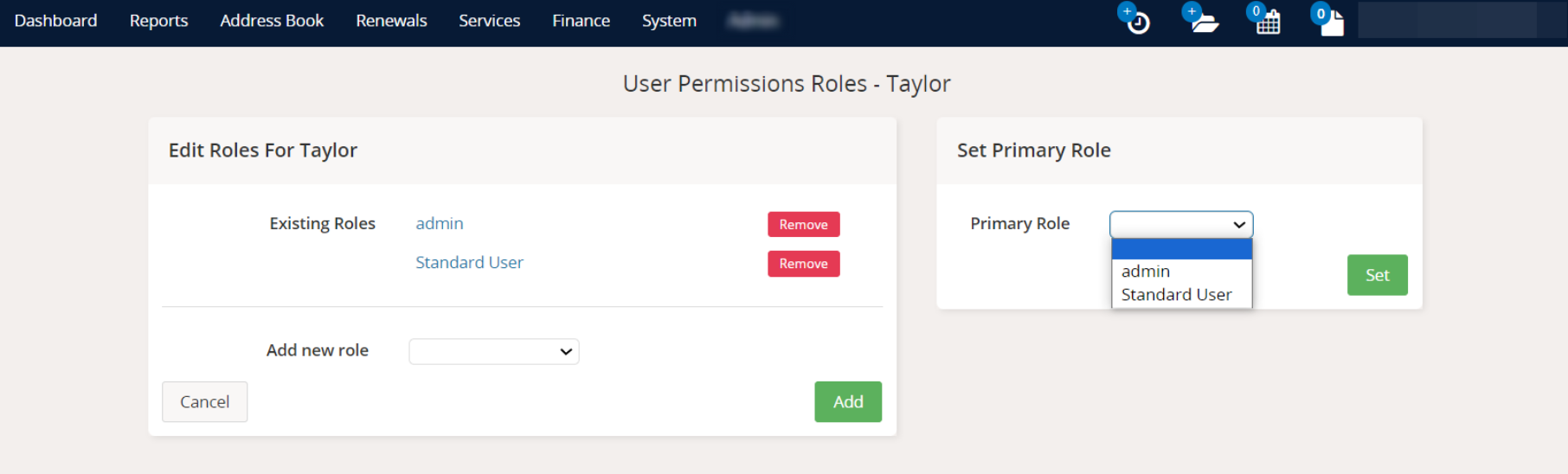
Set a Primary Permissions Role
If any of the users you would like to include in this Case Access Restriction have multiple system permissions roles applied to their user, first ensure to select their Primary Role to match the Case Access Restriction role.
- To do this, head to the System tab and select System Permissions.
- On the Permissions page, select the user under the Username column.
- From the Edit User Permissions Roles screen, choose the relevant Primary Role from the right-hand dropdown, and confirm by selecting Set.
Create a Case Access Restriction for a Role
Once any user permissions role changes have been completed:
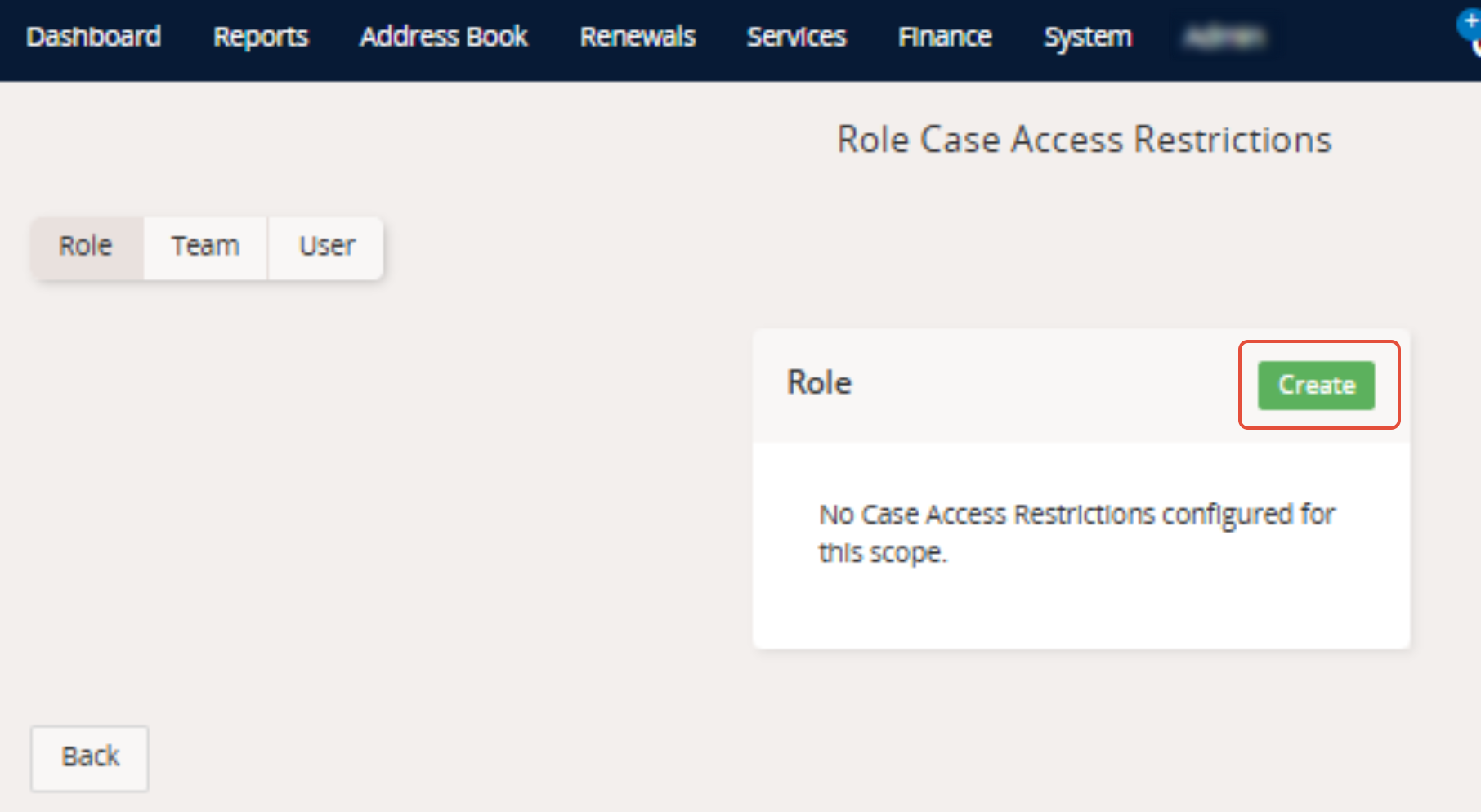
1. Head to the System tab in Equinox and select Case Access Restrictions Management.
2. On the Case Access Restrictions Management page, under Role select Create.
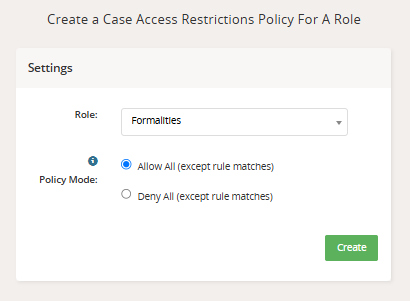
3. Choose the permissions role you would like to create the Case Management Restriction for from the Role dropdown.
4. Select your Policy Mode: "Allow All (except rule matches)" or "Deny All (except rule matches)"
5. Confirm by selecting 'Create'.
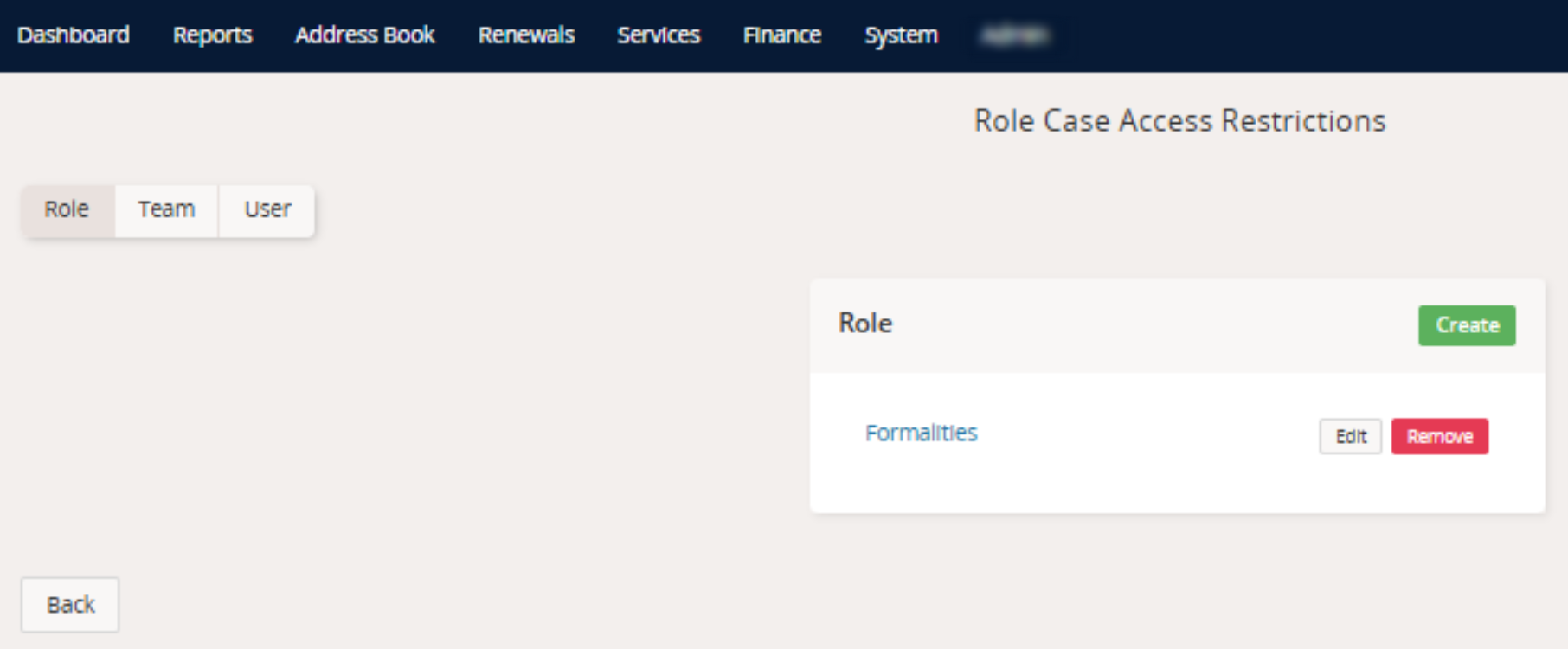
The new Case Access Restriction will now appear on the Case Access Restrictions Management page under Role.
Add Rule Overrides to the Role Case Access Restriction
To add Rule Overrides to the Role Case Access Restriction:
1. Select Edit next to the Role name under the Case Access Restriction Management page.
2. This takes you to the Edit 'Role' Case Access Restriction Policy page, which shows an overview of the Case Access Restriction for this Role.
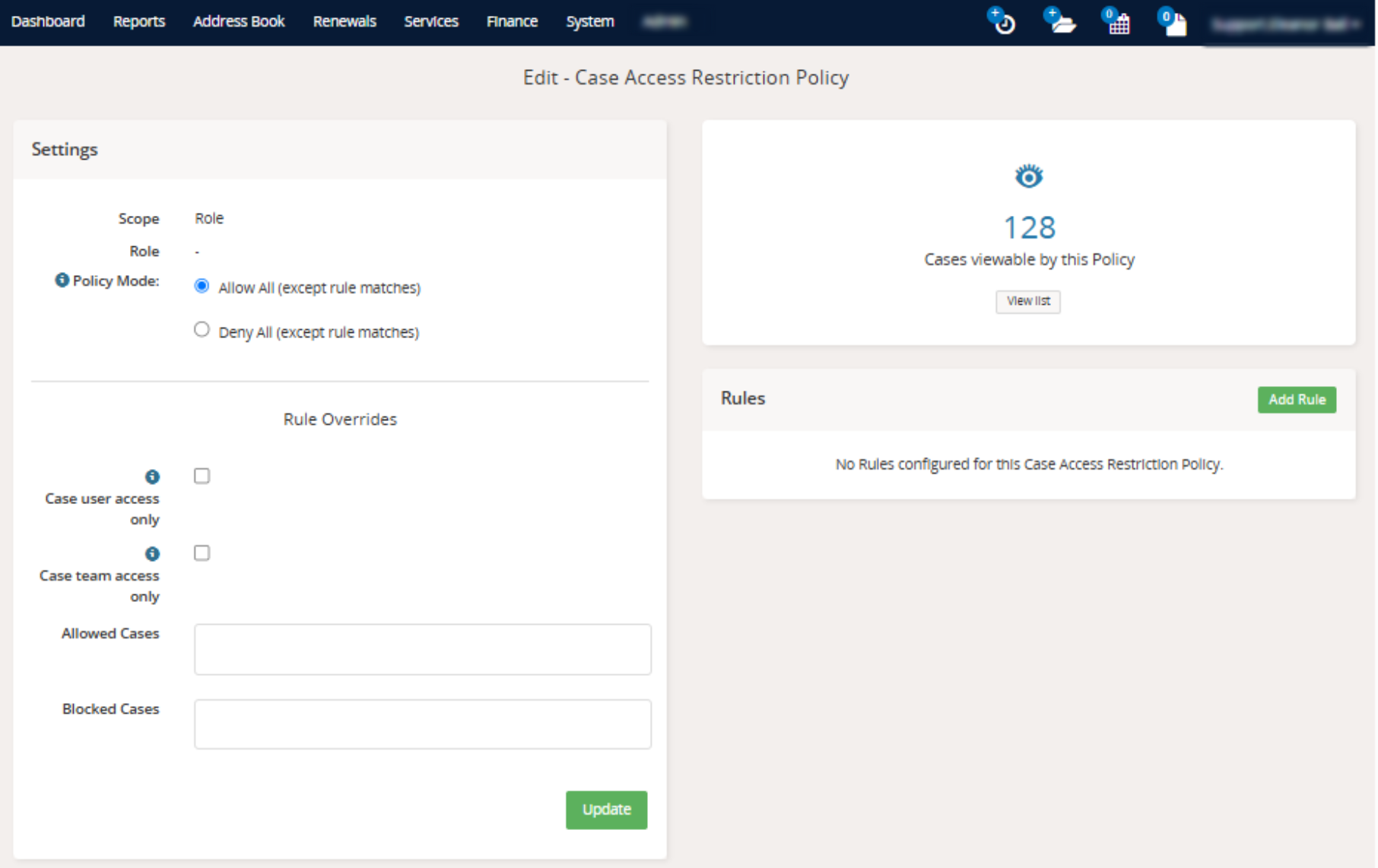
3. Select 'Add Rule' on the right-hand side of the page. There are ten rule types available:
- Category
- Client
- Applicant
- Inventor
- Foreign Associate
- Who pays the bill
- Category and Sub Category
- Family
- Client and Applicant
- Other Associate
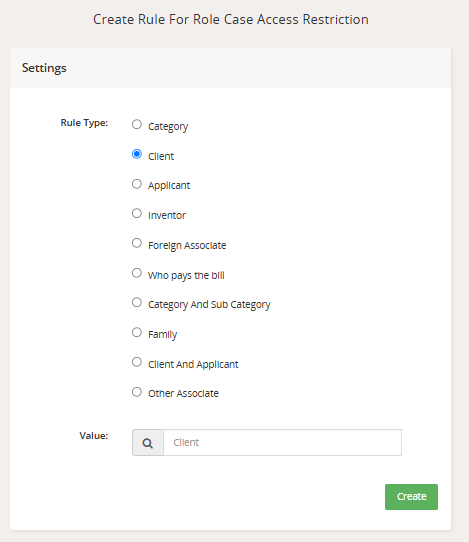
4. Enter the relevant information and confirm with 'Create'.
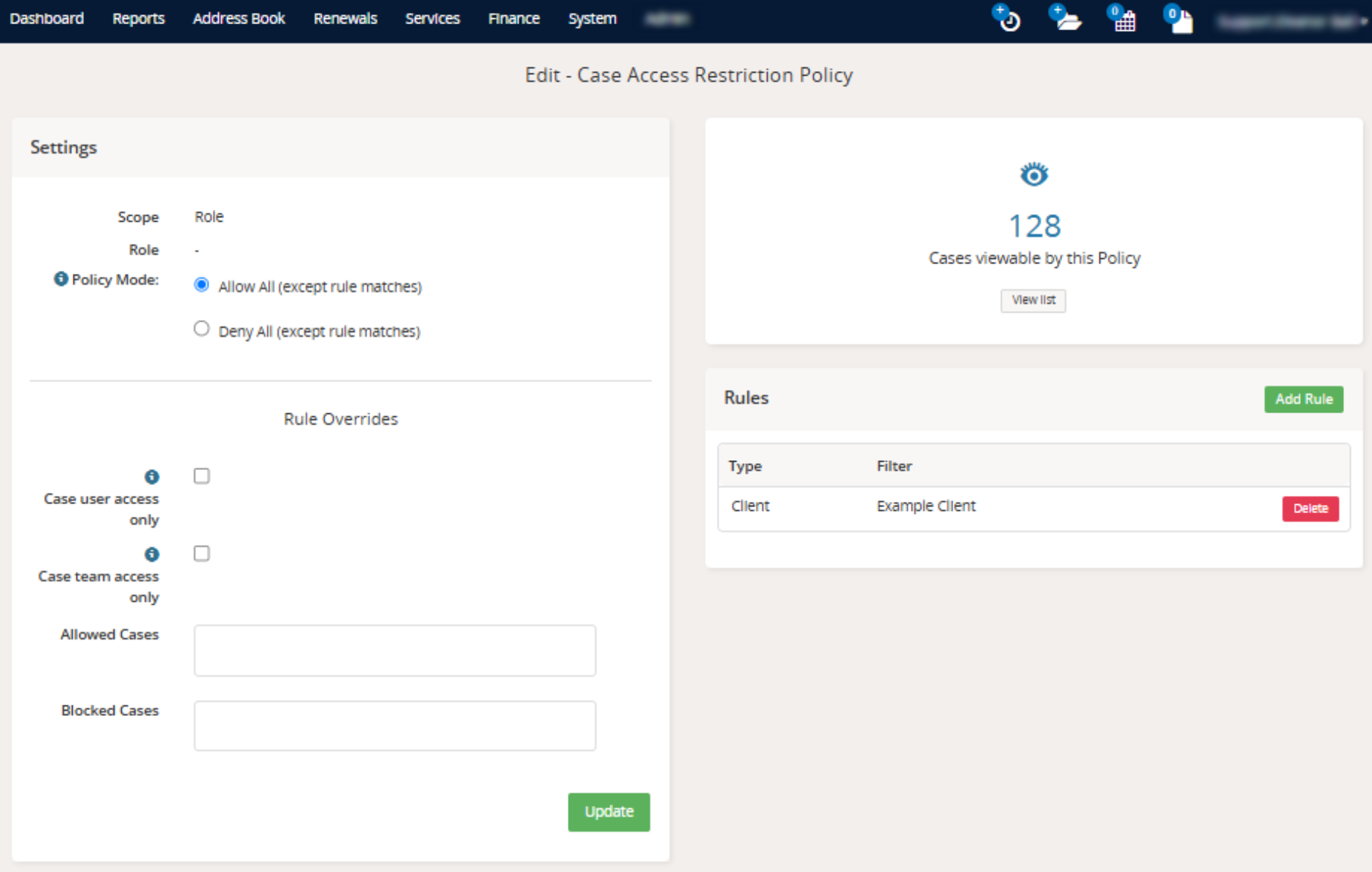
5. Once created, the Edit 'Role' Case Access Restriction Policy page will be updated.
Set up a Case Access Restriction for a Team
Create a Team
To set up a Case Access Restriction for a Team, first create your team under the System tab > Manage Teams.
Create a Case Access Restriction for a Team
Once your Team has been created in Equinox:
1. Head to the System tab in Equinox and select Case Access Restriction Management.
2. On the Case Access Restriction Management page, under Team select Create.
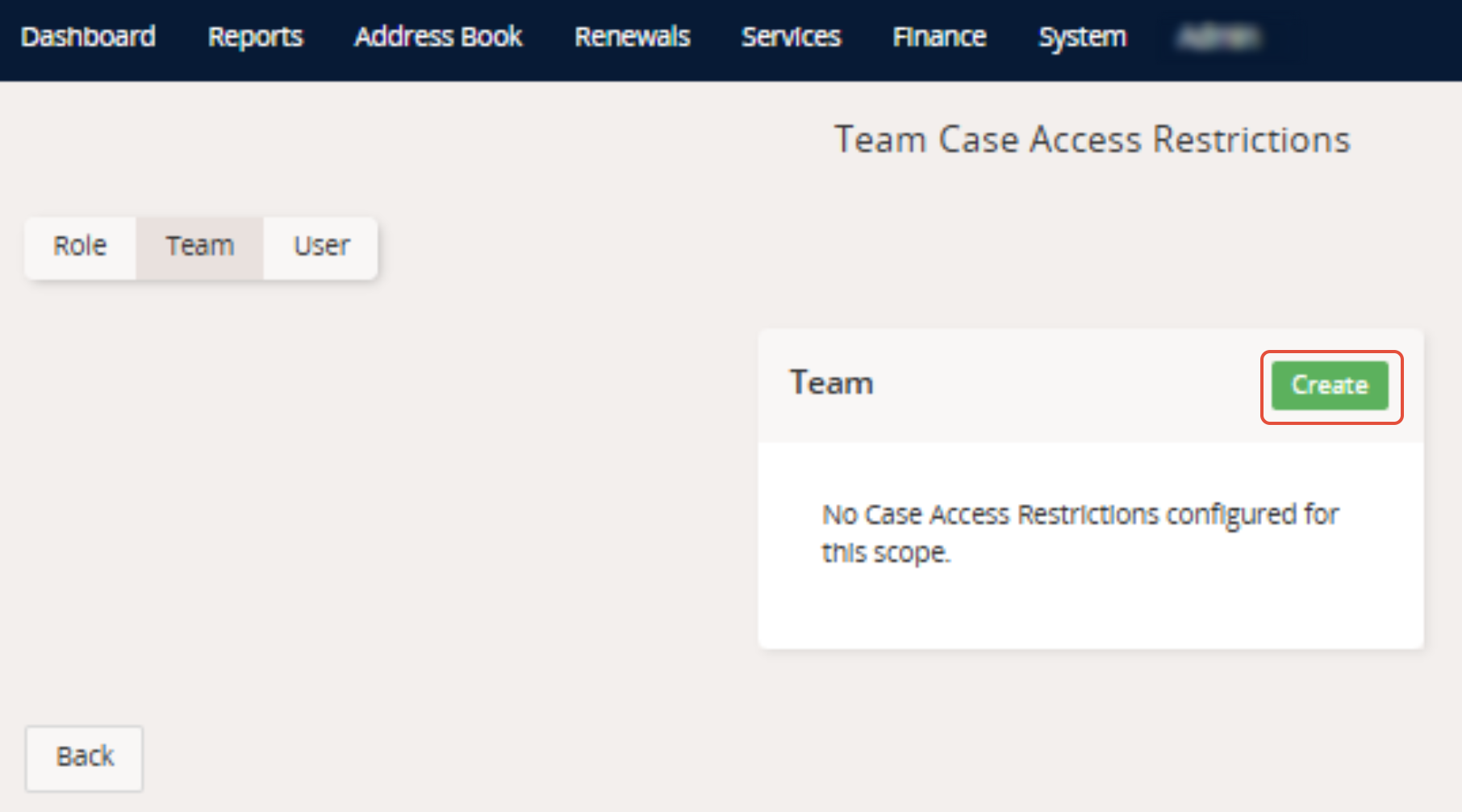
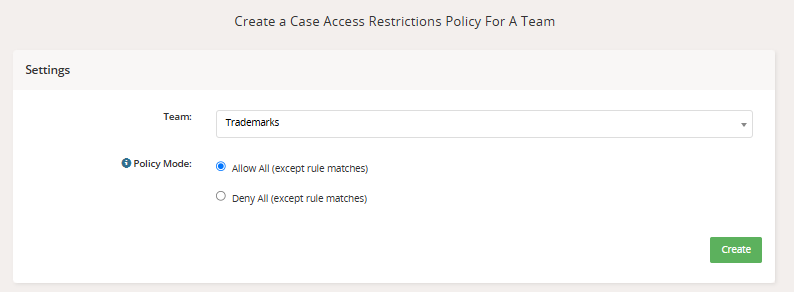
3. Select the relevant Team from the Team dropdown.
4. Select your Policy Mode: "Allow All (except rule matches)" or "Deny All (except rule matches)"
5. Confirm by selecting 'Create'.
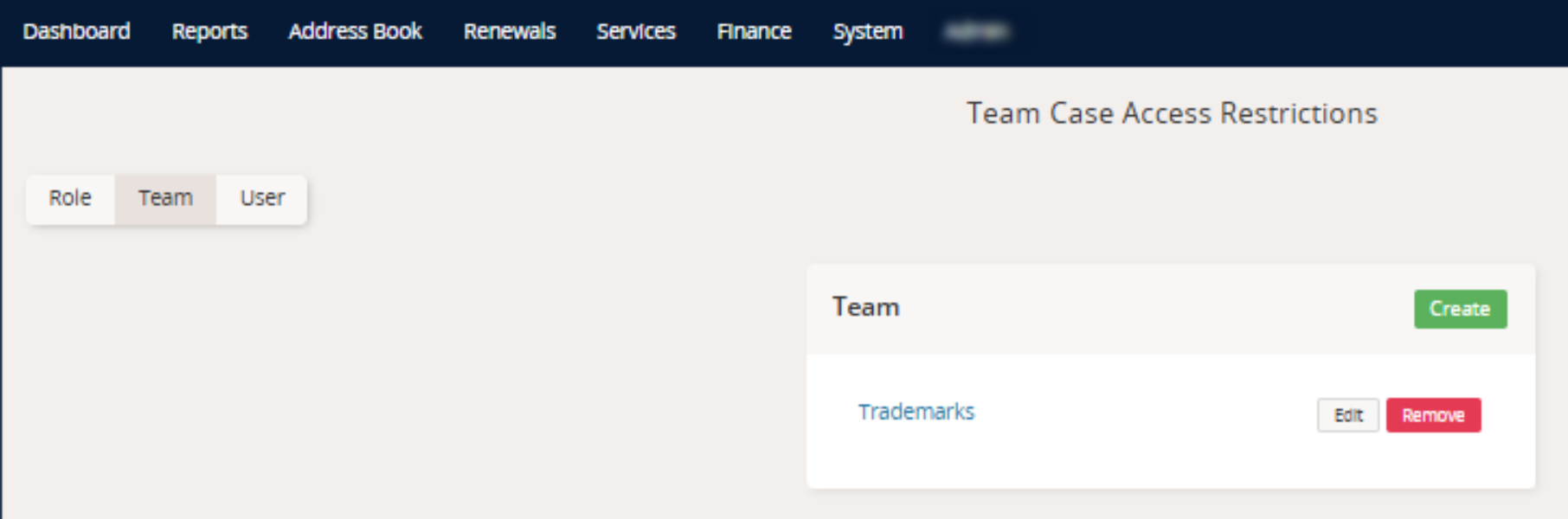
The new Case Access Restriction will now appear on the Case Access Restrictions page under Team.
Add Rule Overrides to the Team Case Access Restriction
To add Rule Overrides to the Team Case Access Restriction:
1. Select Edit next to the Team name under the Case Access Restrictions Management page.
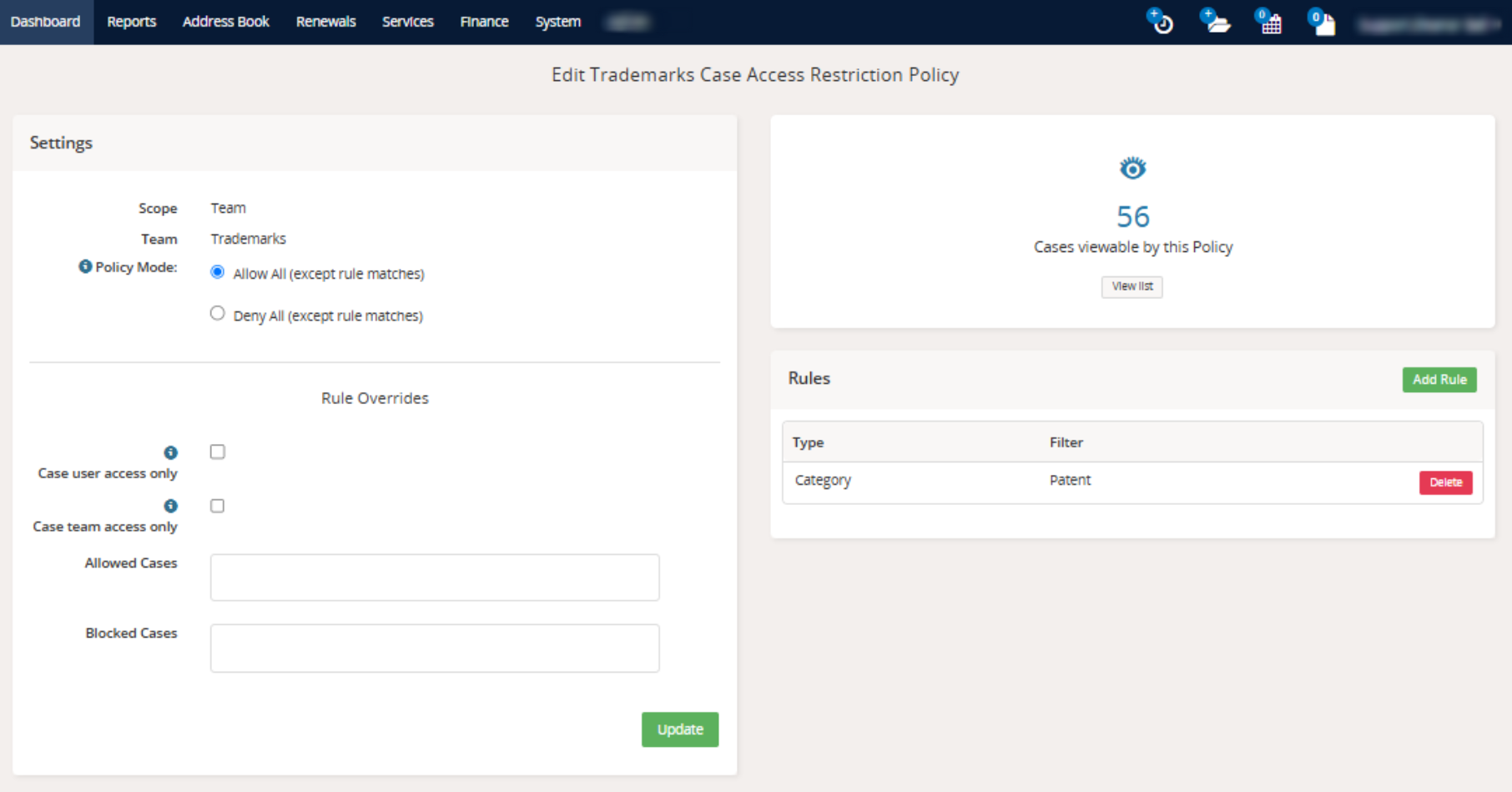
2. This takes you to the Edit 'Team' Case Access Restriction Policy page, which shows an overview of the Case Access Restrictions for this Team.
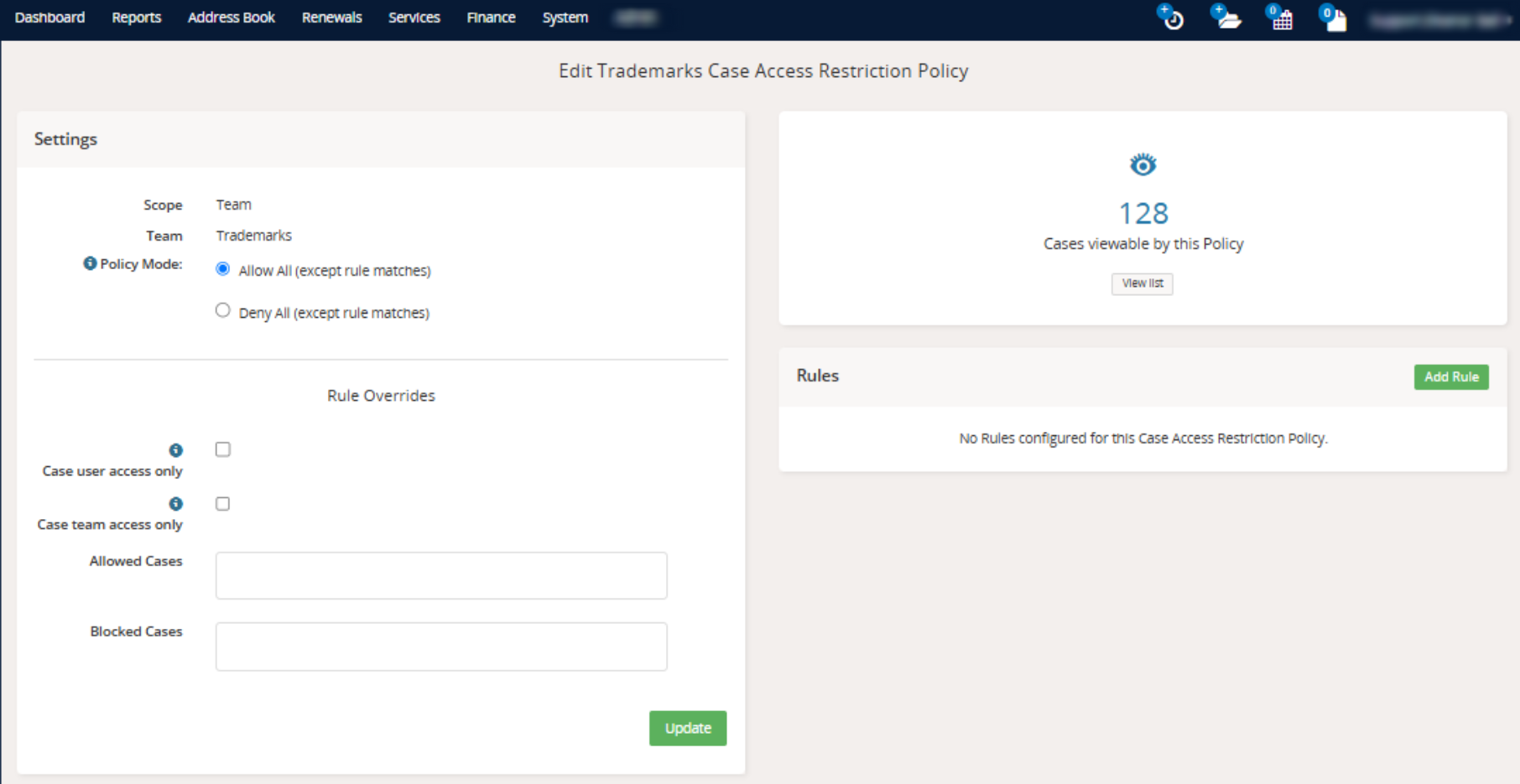
3. Select 'Add Rule' on the right-hand side of the page. There are ten rule types available:
- Category
- Client
- Applicant
- Inventor
- Foreign Associate
- Who pays the bill
- Category and Sub Category
- Family
- Client and Applicant
- Other Associate
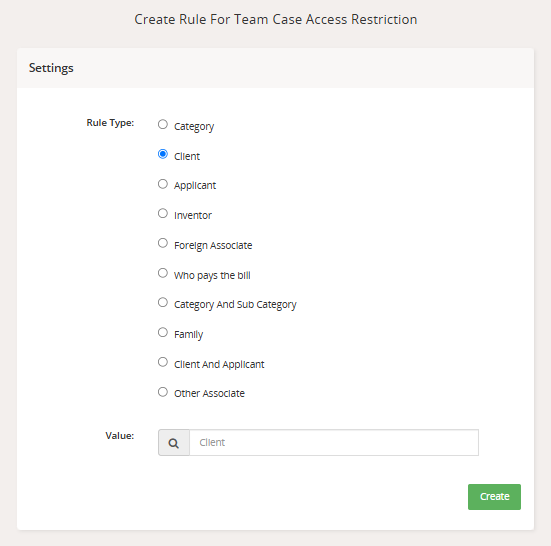
4. Enter the relevant information and confirm with 'Create'.
5. Once created, the Edit 'Team' Case Access Restriction Policy page will be updated.
Set up a Case Access Restriction for a User
Create a Case Access Restriction for a User
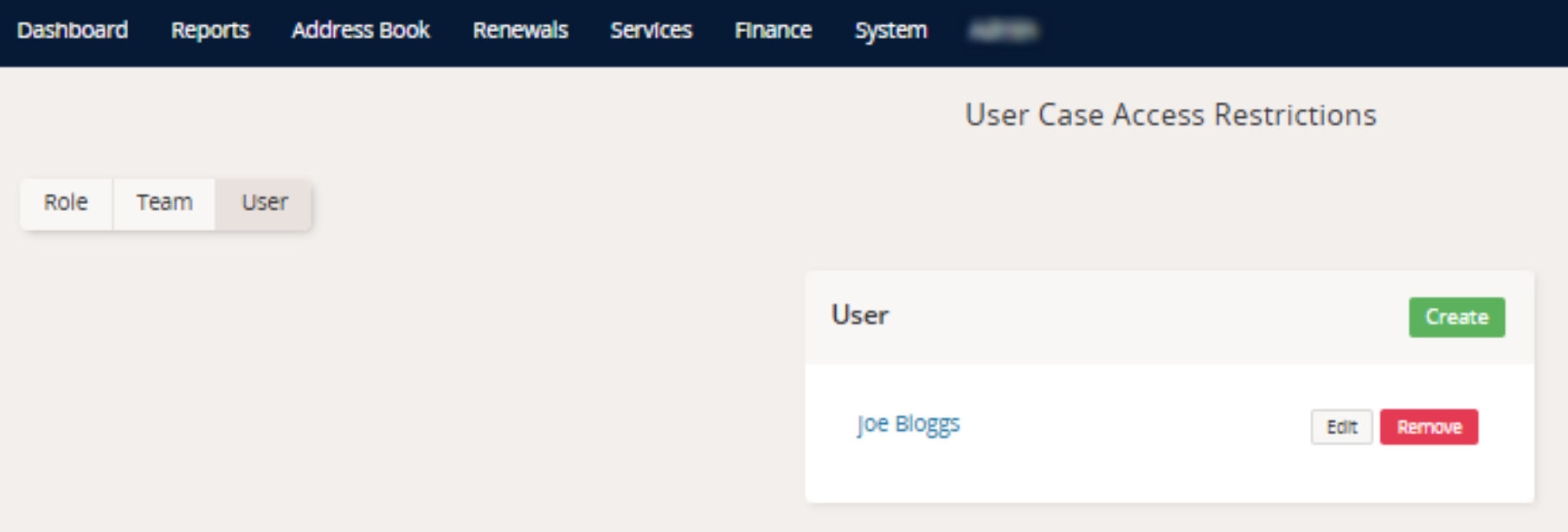
1. Head to the System tab in Equinox and select Case Access Restrictions Management.
2. On the Case Access Restrictions Management page, under User select Create.
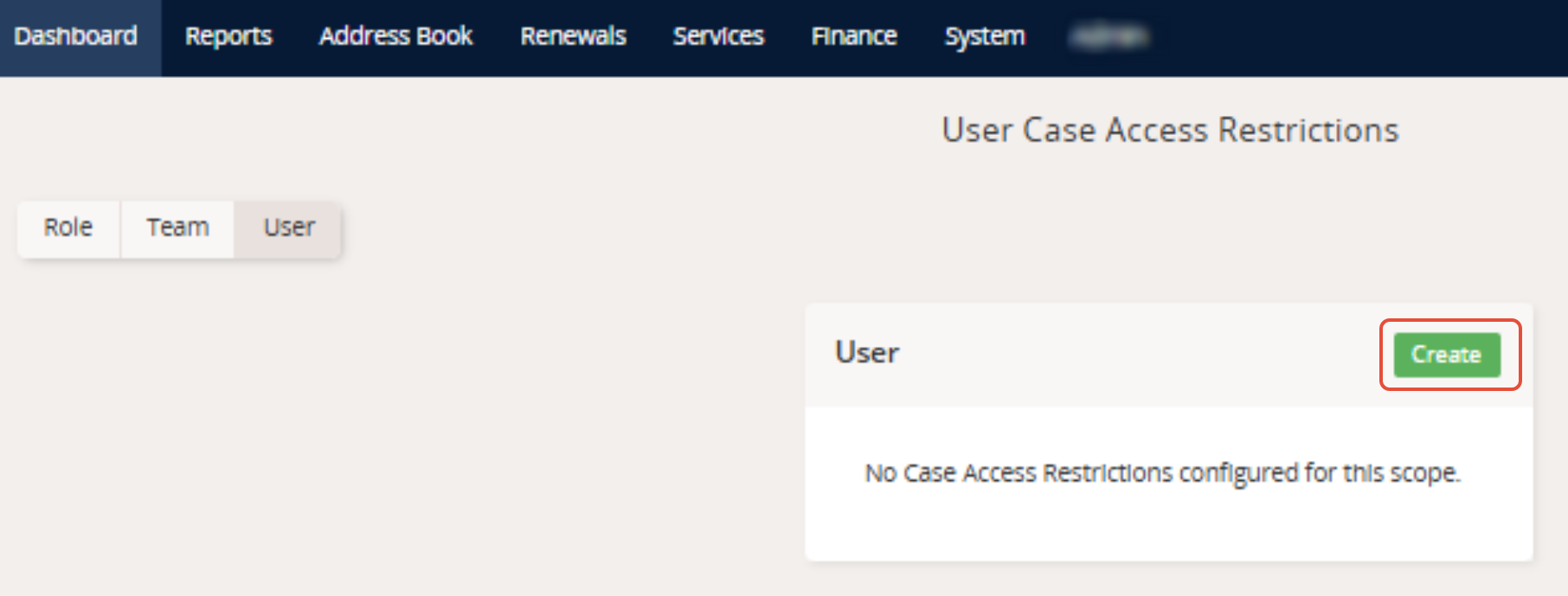
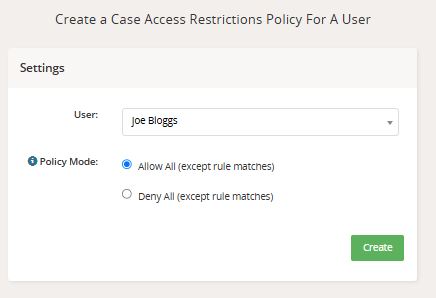
3. Select the relevant user from the User dropdown.
4. Select your Policy Mode: "Allow All (except rule matches)" or "Deny All (except rule matches)"
5. Confirm by selecting 'Create'.
The new Case Access Restriction will now appear on the Case Access Restriction Management page under User.
Add Rule Overrides to the User Case Access Restriction
To add Rule Overrides to the User Case Access Restriction:
1. Select Edit next to the Users name under the Case Access Restriction Management page.
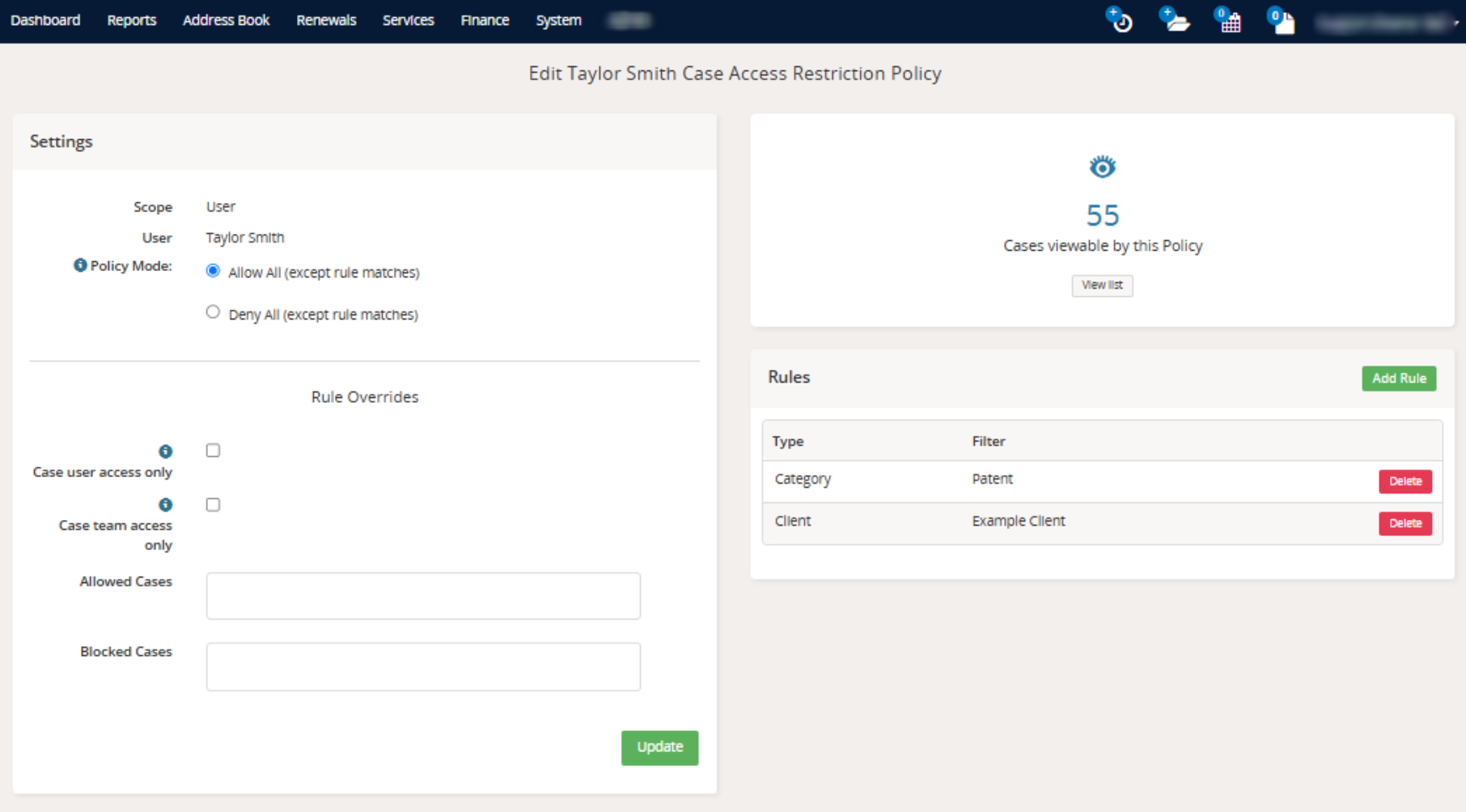
2. This takes you to the Edit 'User' Case Access Restriction Policy page, which shows an overview of the Case Access Restriction for this user.
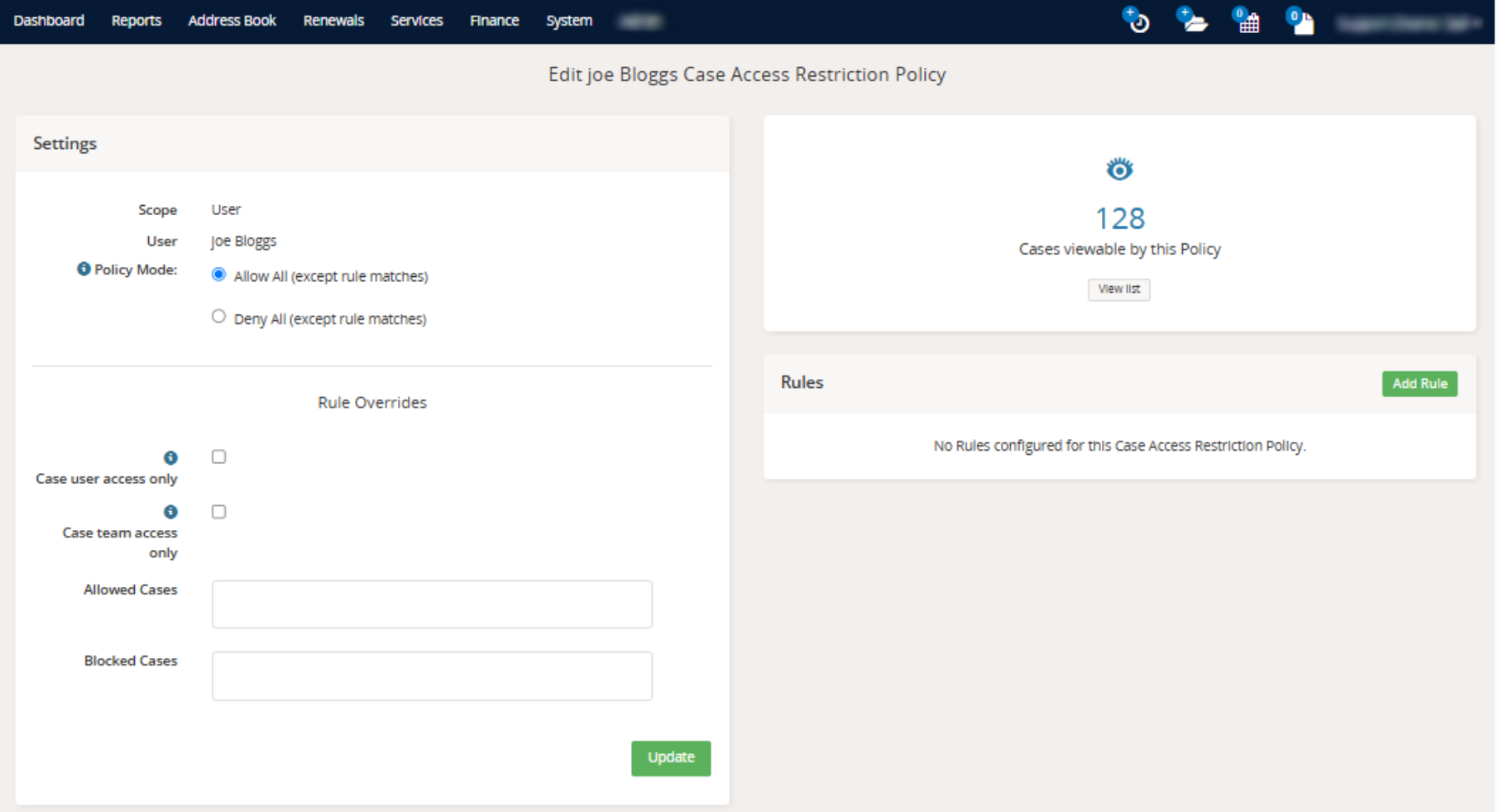
3. Select 'Add Rule' on the right-hand side of the page. There are ten rule types available:
- Category
- Client
- Applicant
- Inventor
- Foreign Associate
- Who pays the bill
- Category and Sub Category
- Family
- Client and Applicant
- Other Associate
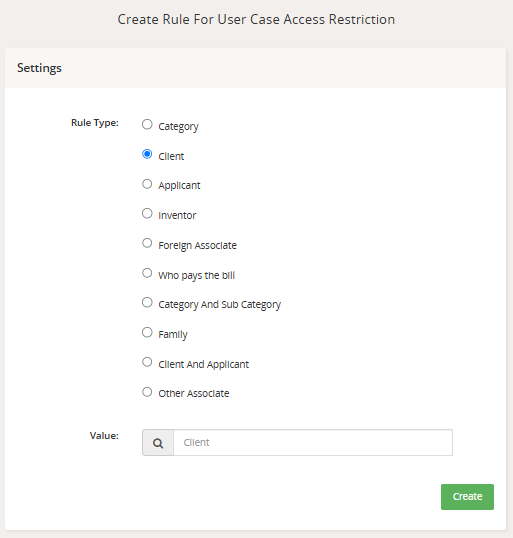
4. Enter the relevant information and confirm with 'Create'.
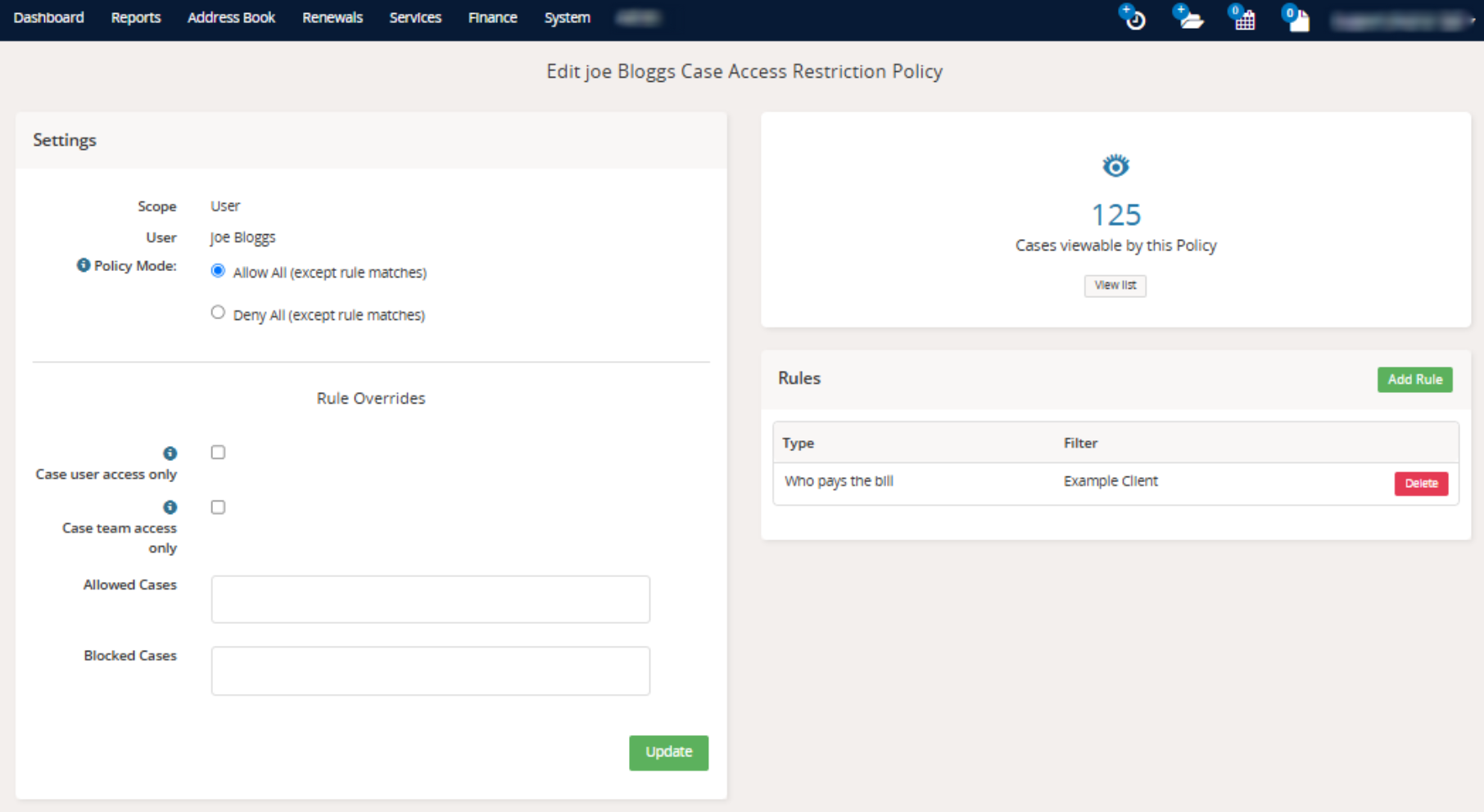
5. Once created, the Edit 'User' Case Access Restriction Policy page will be updated.
Set Up User On Case Restrictions
To add 'user on case' restrictions to the Case Access Restrictions, from the Edit Case Access Restriction Policy page, tick the 'Case user access only' checkbox.
When ticked, the user will only be able to access cases where they are set as one of the four case users.
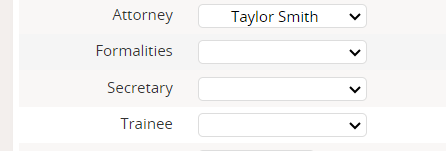
Note: the case user labels may be renamed in your system.
Case Access Restriction Levels
Case Access Restrictions are applied in a specific order of priority, from the most general to the most specific:
- Role – Based on the user's system permission role
- Team – Based on the team the user belongs to
- User – Based on the individual user
When multiple Case Access Restrictions apply to a user, only the most specific level is enforced.
Example: Let’s say our example user, Taylor Smith, is assigned to:
And there are Case Access Restrictions set up for:
In this case, only the Case Access Restriction set for Taylor Smith's user directly will apply. The system prioritises the most specific rule available. |
What happens if a user tries to access a case blocked by a Case Access Restriction
If a user tries to access a case and are blocked by a Case Access Restriction, the following message will appear.
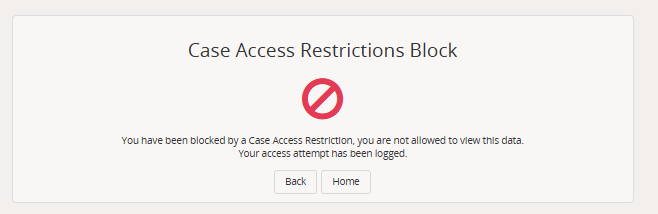
Case information still visible when a Case Access Restriction is in place
Note: A Case Access Restriction does not automatically prevent a user from seeing all information associated with the restricted cases.
A user restricted by a Case Access Restriction will still be able to see case information in other system areas, such as:
- Reporting tools
- All Cases
- All Tasks
- All Families
These can be further restricted - see section 'Additional Preferences & Settings', below.
Legacy Ethical Walls
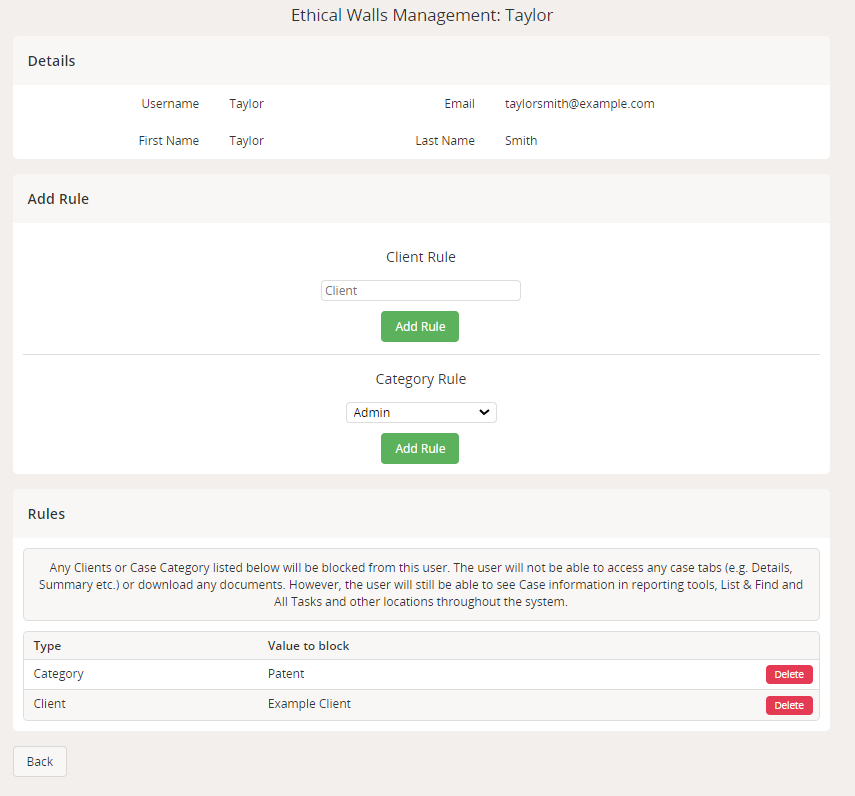
All legacy ethical walls created prior to Equinox Version 2025.2.8 have been preserved and migrated into the new structure under the “User – Allow all except” ruleset.
Example: If the below Ethical Wall was set up for the example user Taylor Smith, prior to Version 2025.2.8, Taylor can access all cases except those where:
Ethical Walls Management page:
Edit User Ethical Walls page:
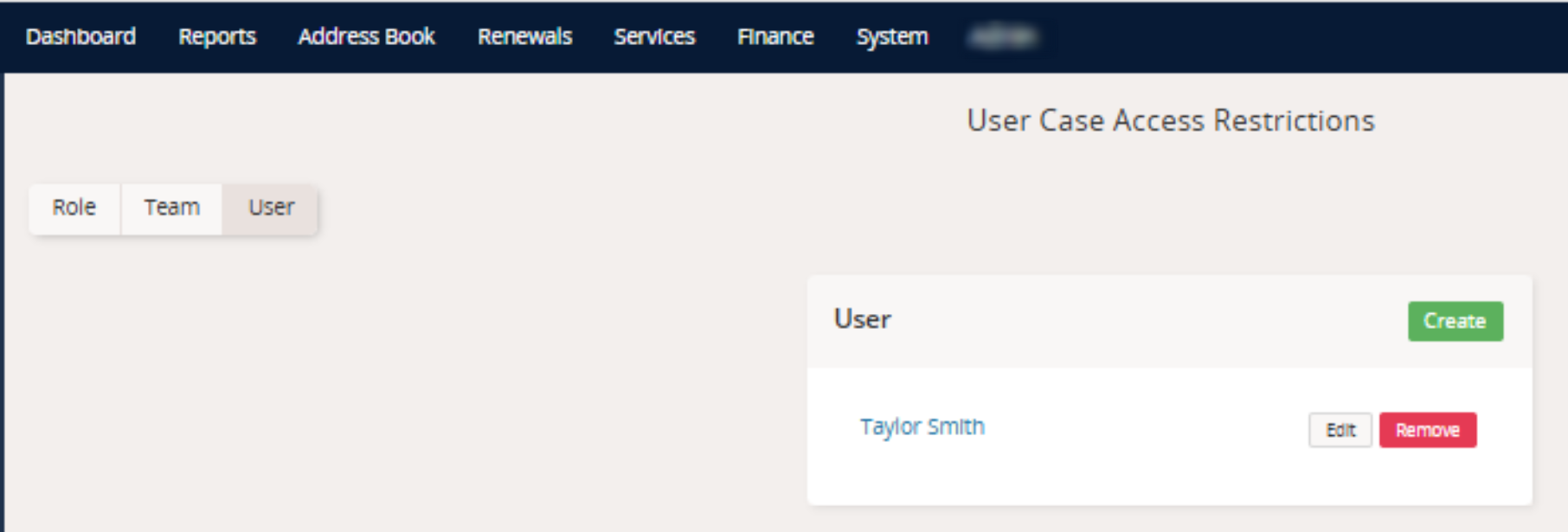
This Ethical Wall is retained and will now appear as below in Version 2025.2.8 onwards. System > Case Access Restrictions Management page > User:
Edit 'User' Case Access Restriction Policy page:
|

Additional Preferences & Settings
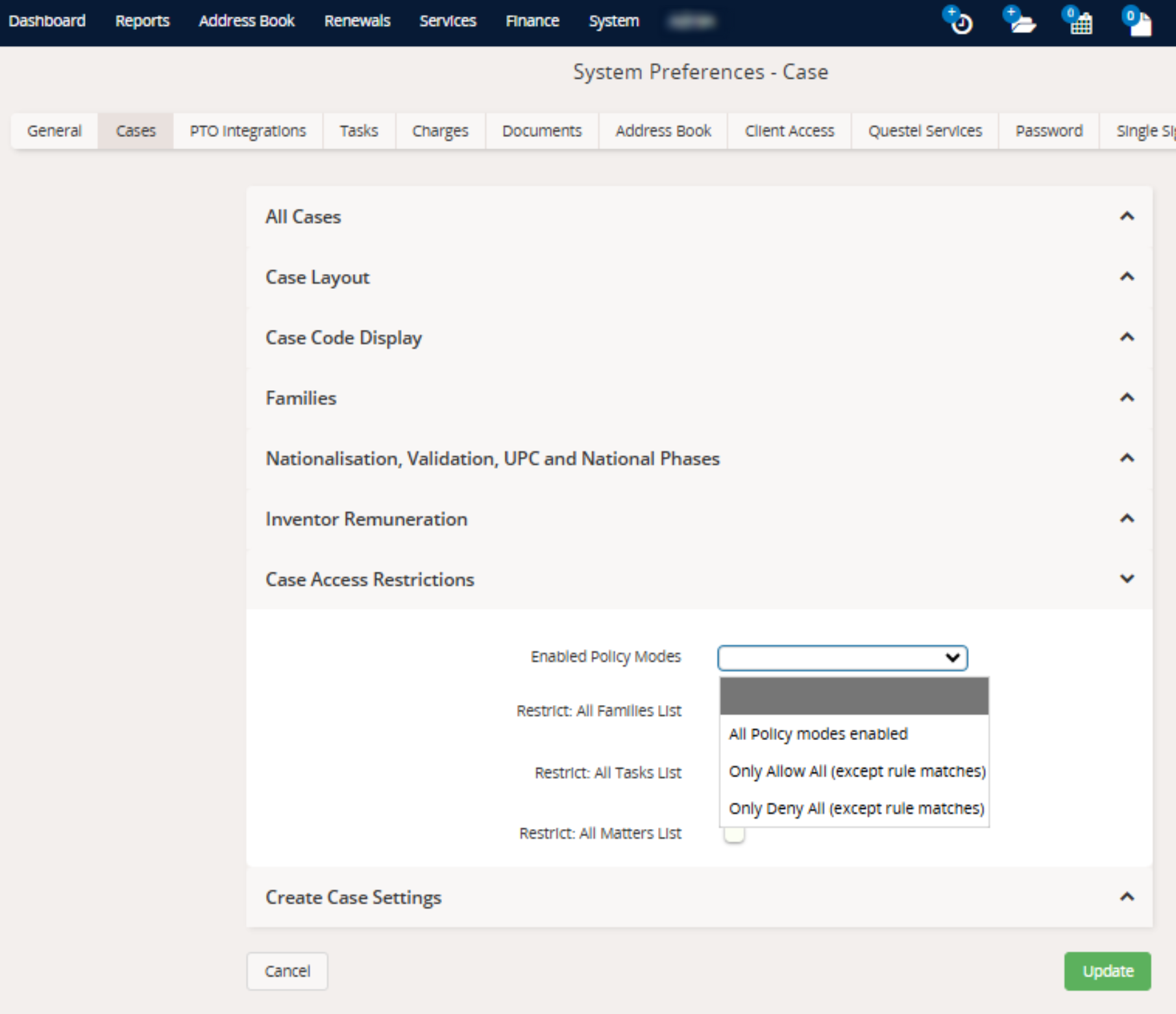
To set your default Case Access Restriction Policy Modes:
- Head to the System tab > System Preferences > Cases > Case Access Restrictions
- Here, you can select "Only Allow All", which would hide the option to add "Deny All except" policies, or "Only Deny All" which would hide the option to add "Allow All except" policies. You can also restrict users from seeing any case information in the All Families, All Tasks, and/or All Matters lists.
- Confirm by selecting 'Update'.